
AI agents and MCP
Available in:AdvancedTeam
An AI agent — for example an AI assistant on your computer — can work in Ludarch on your behalf through the MCP server. Each agent gets its own API key and acts with your rights, never more. Everything it does is recorded and marked as done by an AI agent.
AI agents are included from the Advanced plan. In the Team plan, every member has their own agents and keys.
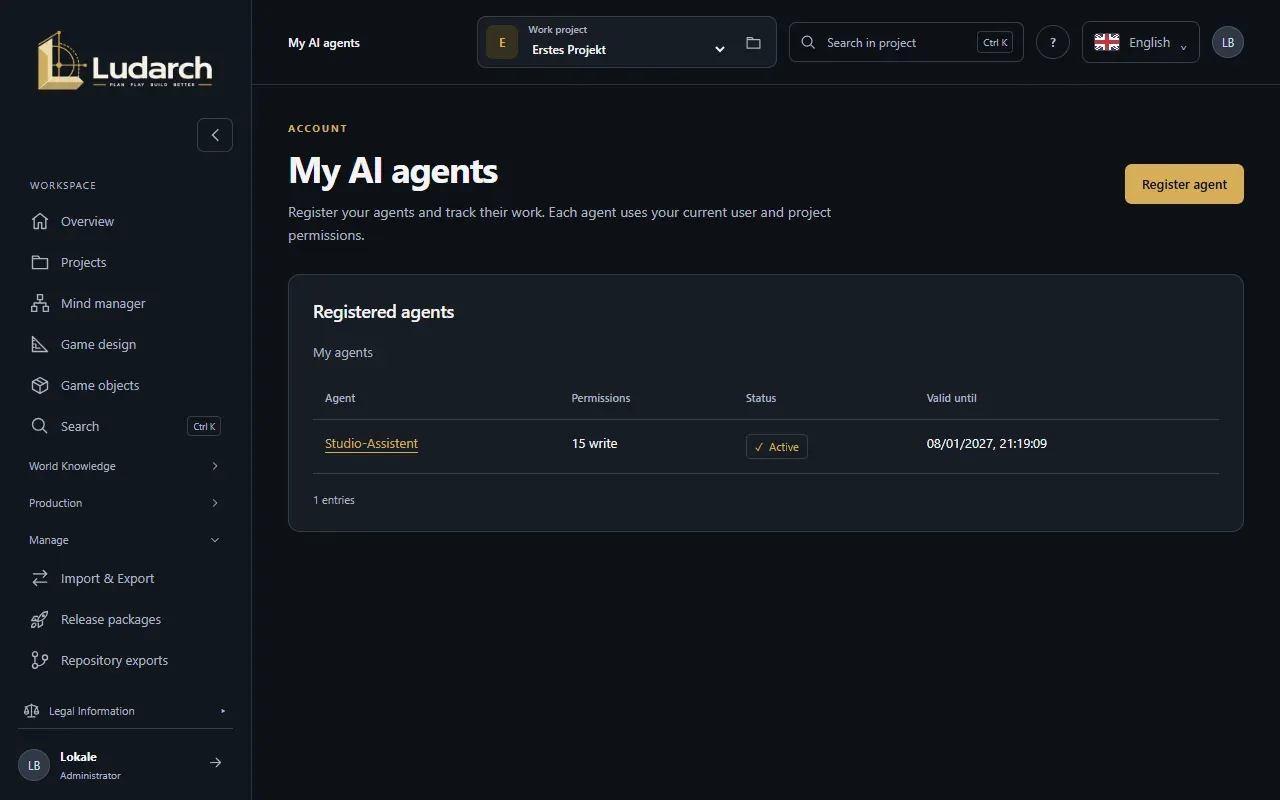
Register an agent
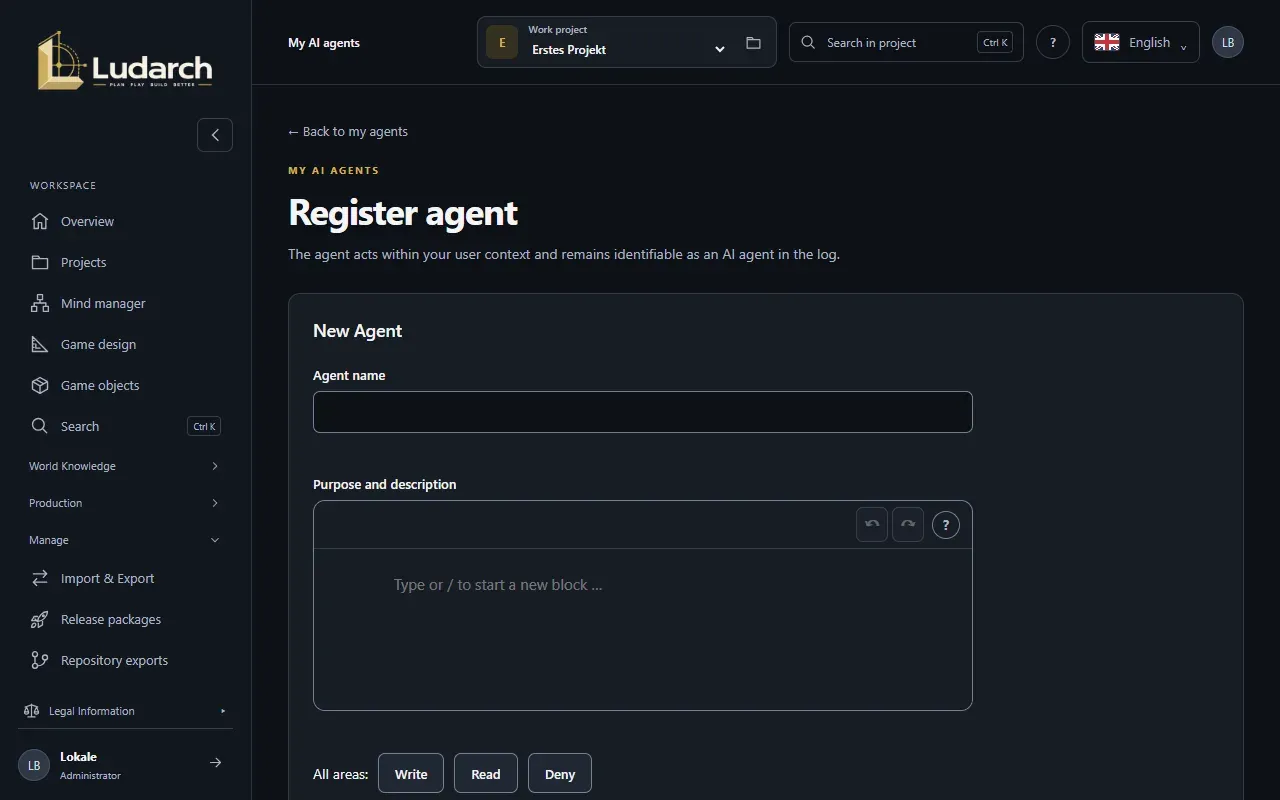
Section titled “Register an agent”- Choose Manage → My AI agents in the sidebar and click New Agent.
- Enter the Agent name and, if you like, its Purpose and description. Choose how long the key stays valid under Validity in days.
- Under Permissions by area, choose for each area Deny, Read or Write. Write is preselected everywhere and is always limited to your own rights.
- Click Register & view API key.
- Copy the key with Copy key and store it in the private configuration of your agent right away — Ludarch shows it only once. Then click Key saved · continue.
Connect through MCP
Section titled “Connect through MCP”The page of an agent explains under Connect to MCP what the MCP process needs: the key as LUDARCH_MCP_API_KEY, the portal address as LUDARCH_MCP_ORIGIN, and LUDARCH_MCP_ALLOW_WRITES=true if the agent may write. Keep the key out of chats.
Watch, change and revoke
Section titled “Watch, change and revoke”On the page of an agent you find:
- API calls — every access with its reported task and result,
- Changes & Background Tasks — everything the agent saved or started,
- Save permissions — change the permissions per area at any time,
- Issue a new key — the old key stops working immediately,
- Revoke agent — the agent loses access immediately.
Your operator can switch MCP off for the whole installation; My AI agents then disappears.