
Storage connections
Available in:BasicAdvancedTeam
With a storage connection, your project uses files from Google Drive, Dropbox or an Amazon S3 bucket. Uploaded originals stay with your provider; Ludarch only remembers which file belongs where. Storage connections are available in every plan — in the Basic plan they are the only storage for files.
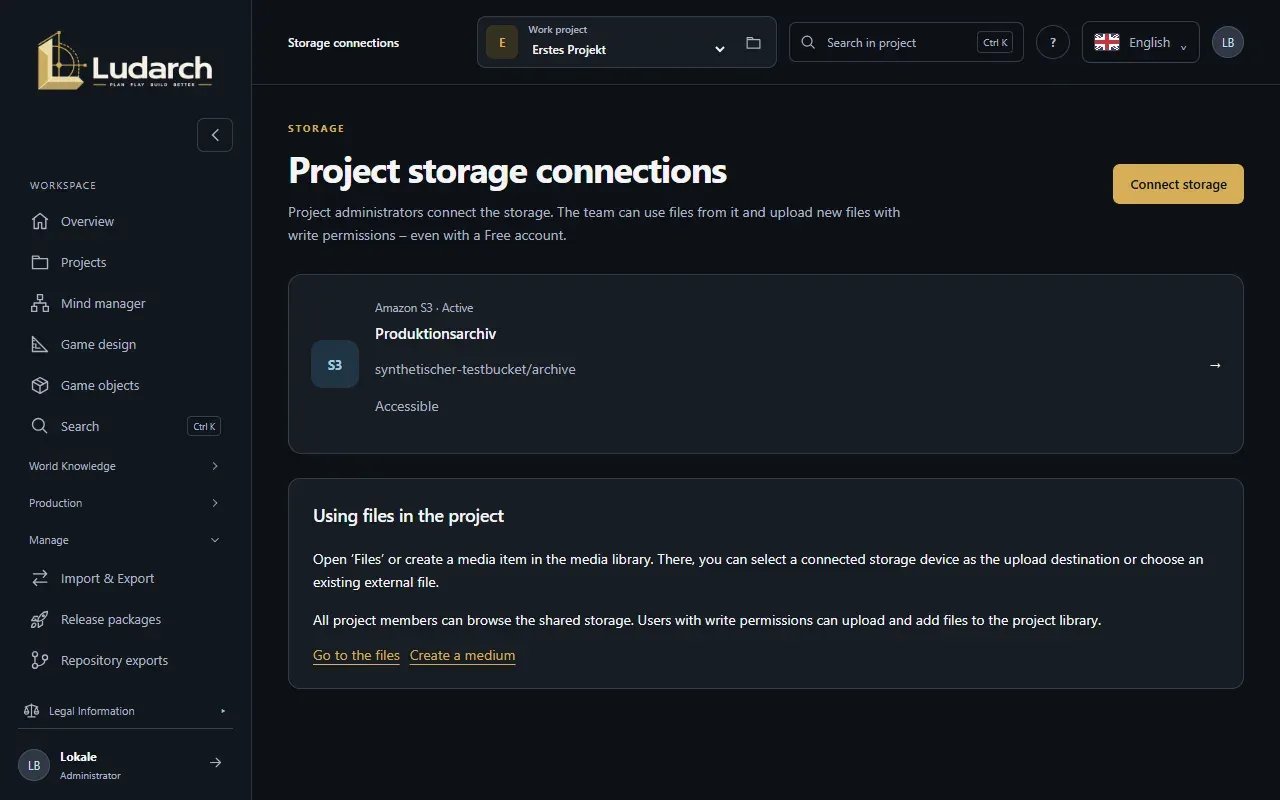
Project administrators can set up and change connections. Everyone in the project can view the files; everyone with write access can upload.
Connect Google Drive or Dropbox
Section titled “Connect Google Drive or Dropbox”- Open Manage → Storage connections and click Connect storage.
- Choose the Storage provider and enter the Connection name.
- Click Connect to Google Drive or Connect to Dropbox.
- Sign in at the provider and grant access. You then return to your connections.
Google Drive only gives Ludarch access to files you choose in Ludarch or that Ludarch creates — not to your whole Drive.
Connect Amazon S3
Section titled “Connect Amazon S3”- Click Connect storage and choose Amazon S3.
- Enter the Connection name, the AWS region, the Bucket and, if you only want to use one folder, a Folder prefix (optional).
- Enter the Access Key ID and the Secret Access Key.
- Click Create connection. Ludarch checks read access before it saves.
Use a dedicated access key for this bucket only, with read and write access — never a root account. Ludarch does not overwrite or delete existing files.
Use files
Section titled “Use files”Once connected, you can choose the connection as the Upload location everywhere: in Files, in the media library, in the source archive and on game objects. Use Select from external storage to pick existing files from the connected storage. PNG, JPEG, WebP, GLB, WAV, OGG, MP3 and MP4 files of up to 64 MiB each are allowed.
Check, renew or disable a connection
Section titled “Check, renew or disable a connection”Click a connection in the overview:
- Check connection reads the folder list and shows whether the storage can be reached. No files are created.
- For S3, Renew login details replaces the keys. If the check fails, the old keys stay valid.
- For Google Drive and Dropbox, reconnect with Reconnect with Google Drive or Reconnect with Dropbox — using the same account.
- Disable and Disable connection switch the connection off. Its files can then not be reached; Enable switches it back on.
File assignments are kept through all of these steps.