
Sign in and get started
Available in:BasicAdvancedTeam
You reach Ludarch at create.ludarch.games. If you open a page while signed out, Ludarch first shows the sign-in page and takes you back to that page afterwards.
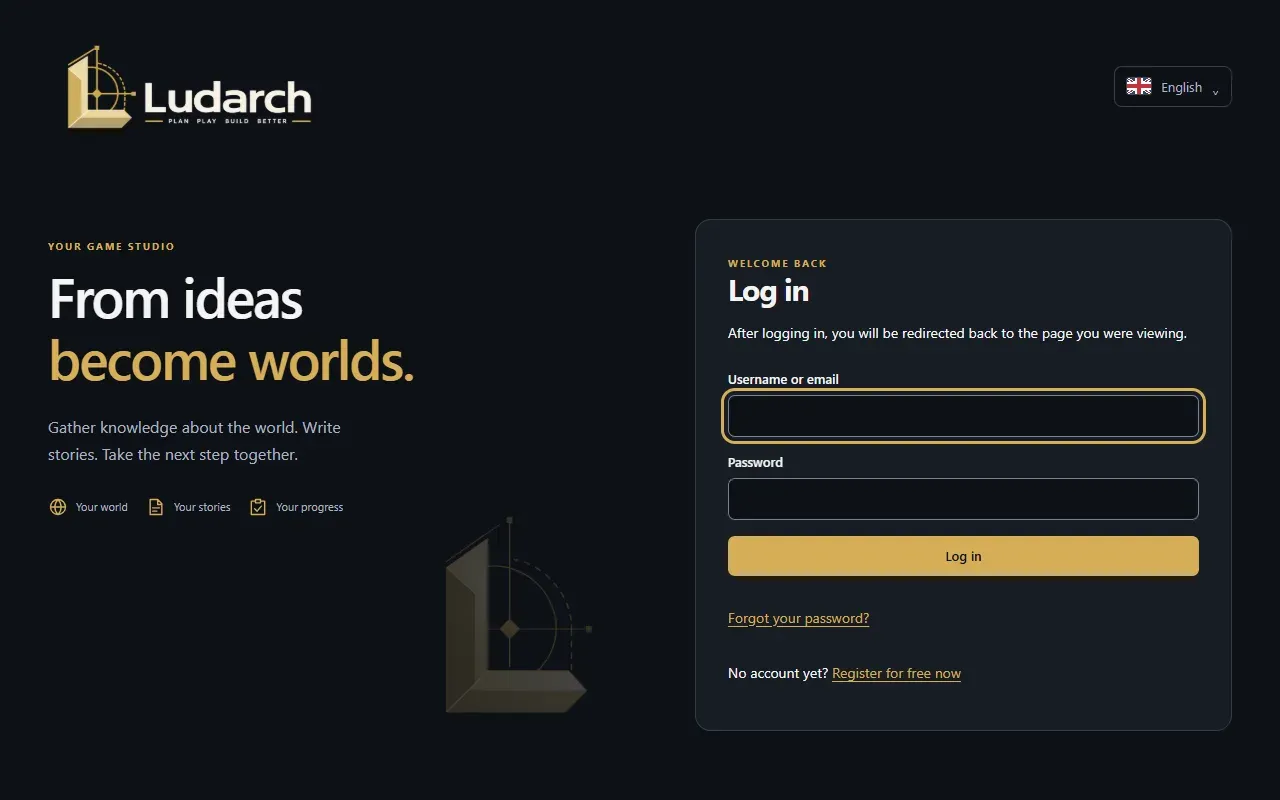
Sign in
Section titled “Sign in”- Enter your Username or email and your Password.
- Click Log in.
If your studio has set up sign-in with another provider, you also see buttons such as Log in with Google under or. Link that provider to your account first under Manage → Account & User → Password & Login (see Account, profile and sign-in).
Create an account
Section titled “Create an account”Self-registration starts you in the free Basic plan, without payment details. (If your operator has switched registration off, the link does not appear.)
- On the sign-in page, click No account yet? → Register for free now.
- Enter First name, Last name, Email address and a Password of at least 12 characters.
- Accept the terms of use and the privacy notice and click Send confirmation code.
- Ludarch emails you a six-digit code. Enter it under Confirmation code and click Create account.
You are signed in and land on the overview of your new studio. If the code does not arrive, use Send a new code or go back to use another email address.
Forgot your password?
Section titled “Forgot your password?”- On the sign-in page, click Forgot your password?.
- Enter your Email address and click Send link. The link is valid for one hour — check your spam folder too.
- Open the link, enter your New password twice and click Save password.
- Sign in with the new password. All other sessions are signed out.
Join a team
Section titled “Join a team”When a team administrator invites you, you receive an email with a link.
- New to Ludarch: enter first name, last name and a password, accept the terms and click Create account and join.
- You already have an account: click Sign in and join, sign in, and you return to the invitation. If you are already signed in with that account, click Join team.
An invitation is valid for seven days. If it has expired, ask for a new one.
First sign-in with an initial password
Section titled “First sign-in with an initial password”If an administrator created your account with an initial password, Ludarch asks you to choose your own first: enter the Initial password, then your new password twice, and click Change password. Afterwards you sign in with the new password.