
Repository exports
Available in:BasicAdvancedTeam
With repository exports you hand a reviewed project state to your development team: Ludarch transfers metadata and a manifest to a new branch of a private repository on GitHub or Gitea. The base branch is never changed, and original files stay in your storage.
The Manage → Repository exports page appears when the project has ticked the area Git & Engine Export under Sections in the navigation (see Projects). Project administrators can connect, prepare and transfer.
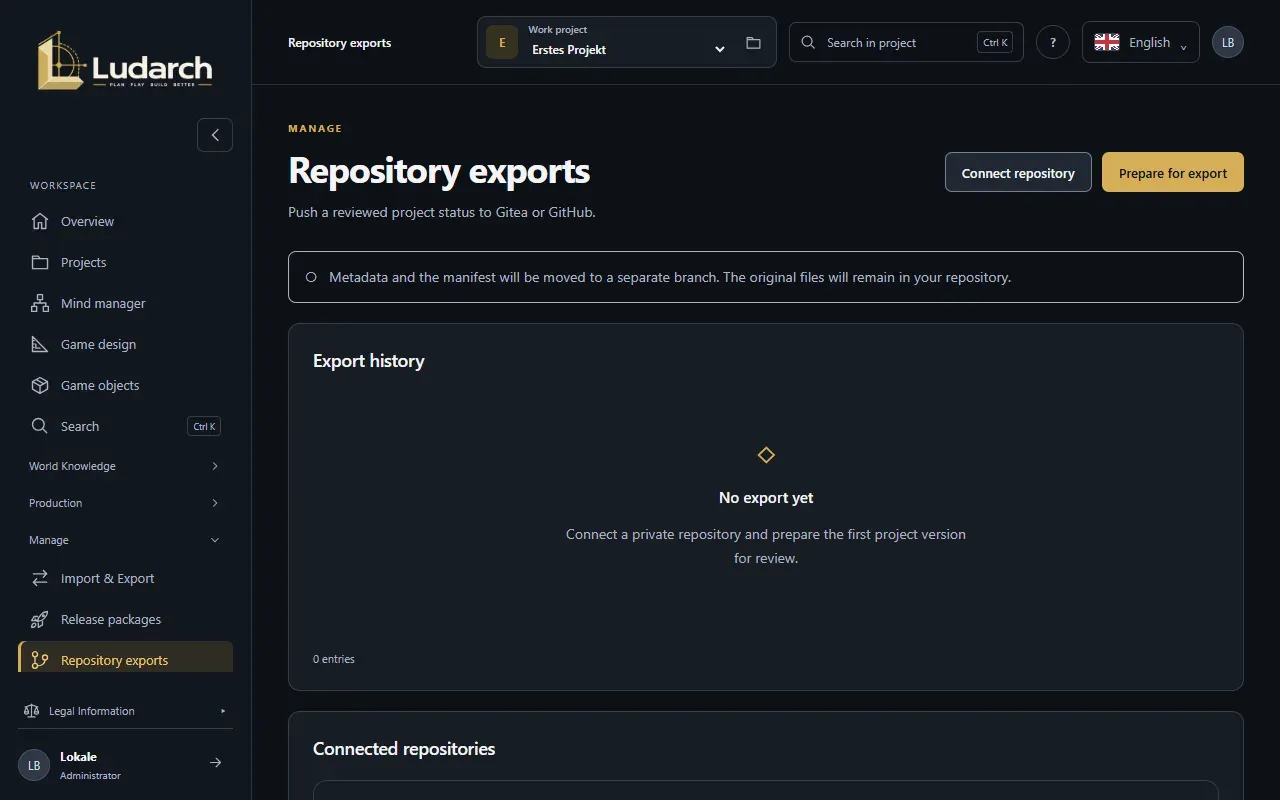
Connect a repository
Section titled “Connect a repository”- Click Connect repository.
- Enter the Connection name and choose the Git provider. For Gitea, also choose the Gitea instance your operator has approved.
- Enter the Owner or organisation, the Repository name and the Base branch (usually
main). - Paste an Access token — or choose Use my personal account if you have stored a GitHub or Gitea token under Personal AI and Git integrations.
- Click Check & link.
For GitHub you need a fine-grained token for this repository only, with read and write access to Contents. For Gitea you need a dedicated token with write access to this repository. The repository must be private and writable and have at least one commit. Ludarch stores tokens encrypted and never shows them again.
Prepare an export
Section titled “Prepare an export”- Click Prepare for export.
- Choose the Target repository and click Generate preview.
- On the Check export page, review the frozen state: content, media versions, new branch, folder and checksum. Under View export files you can open every file.
The export contains cultures and documents, tasks, production planning, narratives and dialogues, references, relationships and fixed media versions. Original files are not copied to Git. Check free-form texts for anything confidential — everyone with read access to the repository can see them.
Transfer
Section titled “Transfer”- Under Approve transfer, tick the box to confirm that you have checked the content and the target.
- Click Transfer reviewed export.
- Once the transfer is done, the export shows Transferred with the confirmed commit. Open repository → takes you to the branch.
Merging or opening a pull request is then done at your Git provider. If the transfer was interrupted, click Update status; after about 90 seconds, Synchronise provider status becomes available.
Bring edited content back
Section titled “Bring edited content back”If the development team has changed texts in the exported project.json, you can bring them back:
- Open the export and, under Retrieve further-edited content, click Prepare for re-import.
- Under Edited project.json, choose the changed file.
- Click Compare changes. For each changed entry you see, field by field, the Export basis, the value In the portal and the value From the file.
- If there are no conflicts, enter a Reason, tick the box and click Apply changes and go back.
Only changes to existing cultures, documents and tasks are brought back. Entries missing from the file are not deleted; bring new objects into the project with Import and export. A single conflict blocks the whole re-import — edit the file and compare again.