
Trash
Available in:BasicAdvancedTeam
Anything you remove in Ludarch first goes to the Trash under Manage → Trash. From there you can bring it back with all its saved versions — or a project administrator deletes it permanently.
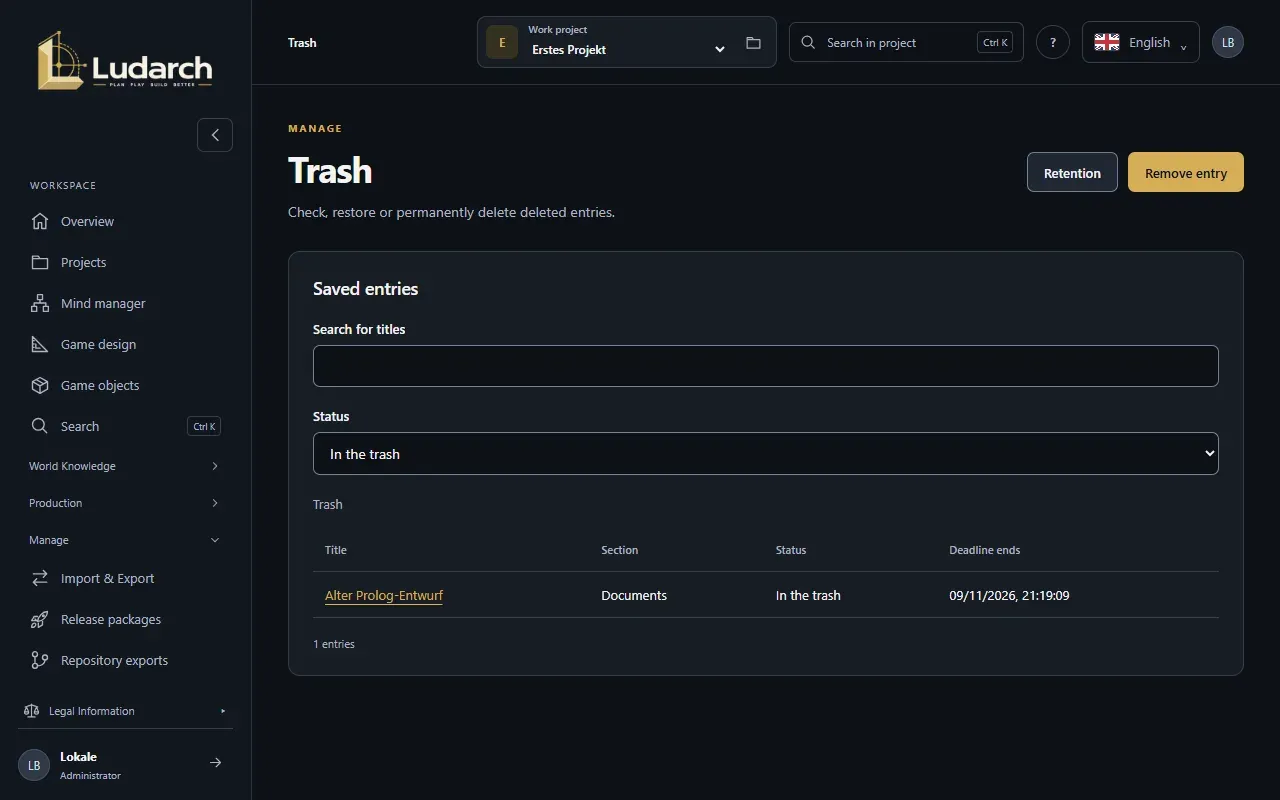
Dossiers, documents, tasks, media, productions and references, narrative, video and music entries, and original files can go to the trash. User accounts, projects and billing data cannot.
Remove an entry
Section titled “Remove an entry”- In an entry, click To the trash … — or in the trash, click Remove entry and choose the entry.
- In the dialog, enter a Reason.
- Click To the trash.
The entry disappears from the working lists and can still be restored.
Restore
Section titled “Restore”- Open the trash. Use Search for titles and Status to find the entry.
- Click the title and then Restore.
- Confirm in the dialog.
The entry comes back with its original ID and all its versions. If something it needs — such as a file — is also in the trash, restore that first.
Delete permanently (project administrators)
Section titled “Delete permanently (project administrators)”In the entry, click Permanently delete, enter a reason and click Delete permanently. The content and all versions are deleted; only a small deletion record remains. If the entry is still in use, Deletion blocked shows what you need to resolve first.
Set retention (project administrators)
Section titled “Set retention (project administrators)”By default, Ludarch never deletes anything automatically.
- Click Retention.
- Set the Retention period in days (for new entries) (1 to 365, default 30).
- Under After the retention period, choose Retain until manually deleted or Automatically and permanently delete unused entries.
- Click Check the rules and save and confirm with Confirm rule.
Only entries that are no longer in use are deleted automatically. Periods that were already set stay unchanged.