Project AI access
Available in:BasicAdvancedTeam
Project AI access lets a project team share AI keys. The team that stores a key is the provider’s customer; Ludarch only provides the connection. Project keys appear as (Project) next to everyone’s personal keys — in AI generation in forms, AI tasks, automations and concept images.
Project administrators manage project AI. Available providers: OpenAI, Anthropic, Mistral, Google Gemini, an approved own LLM, Meshy and Tripo.
Add a project key
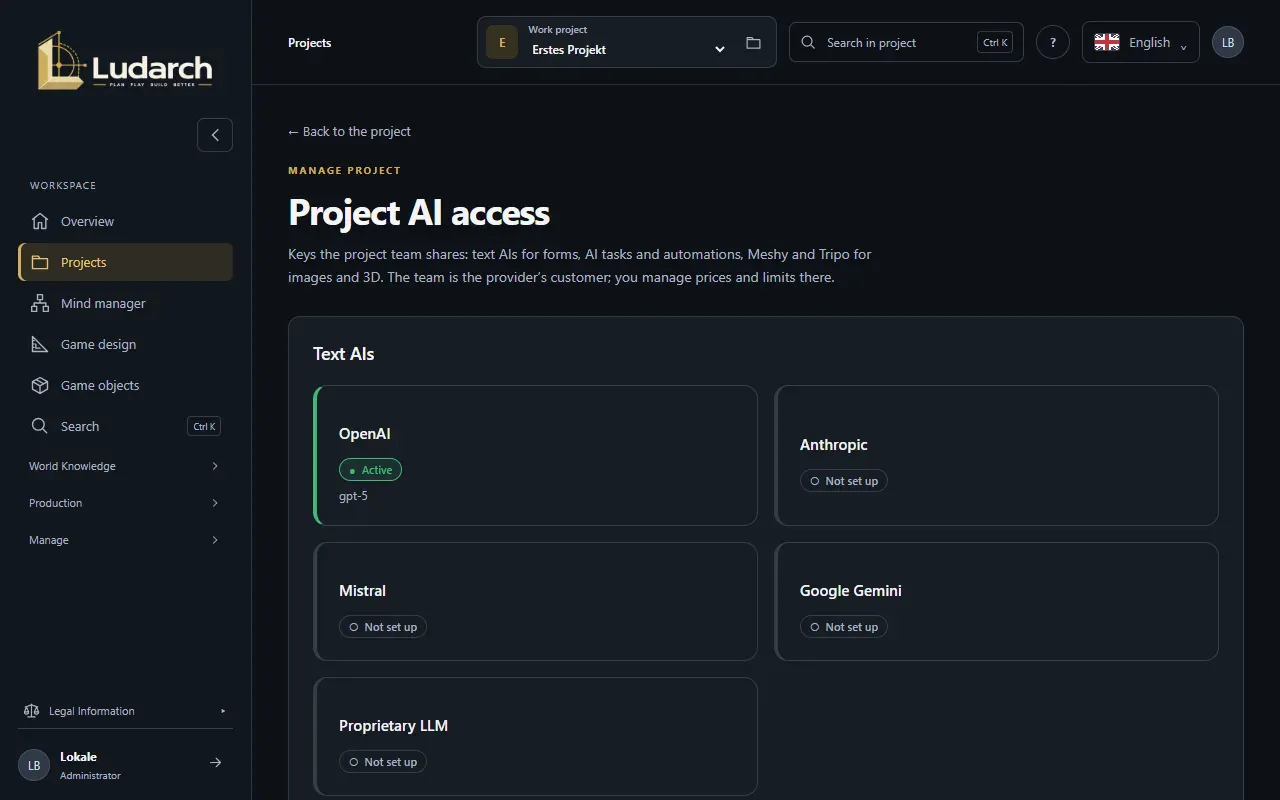
Section titled “Add a project key”- Open the project under Projects and click AI access.
- Click the provider card, for example OpenAI. The form opens below the cards.
- Paste the API key, click Check and load models and choose a model.
- Keep Connection active ticked and click Save.
The card colours mean the same as for personal connections: green active, orange configured but switched off, grey not set up, red error.
Everyone in the project sees which AIs are connected on the project page and on the overview, under AI access — without keys.
Monthly budget (optional)
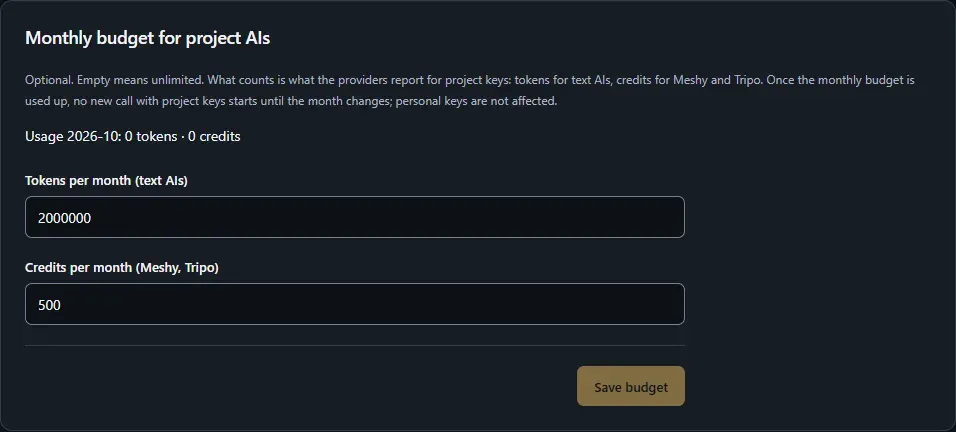
Section titled “Monthly budget (optional)”By default project AI is unlimited. Under Monthly budget for project AIs you can set a limit per month:
- Tokens per month (text AIs) for OpenAI, Anthropic, Mistral, Gemini and your own LLM,
- Credits per month (Meshy, Tripo) for images and 3D.
Ludarch counts what the providers report. Once a limit is reached, no new call with project keys starts until the month changes; the call that crosses the limit still finishes. Personal keys are never affected. Leave a field empty for unlimited.
Who may use which AI (Team plan)
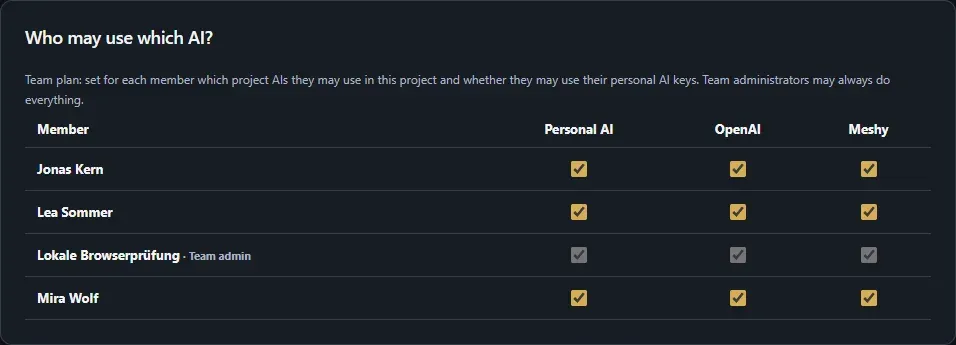
Section titled “Who may use which AI (Team plan)”In the Team plan, the table Who may use which AI? lists every project member:
- Personal AI: may this member use their own AI keys in this project?
- One column per project AI: may this member use it?
Changes apply immediately. Team administrators may always use everything.