
Mind manager
Available in:BasicAdvancedTeam
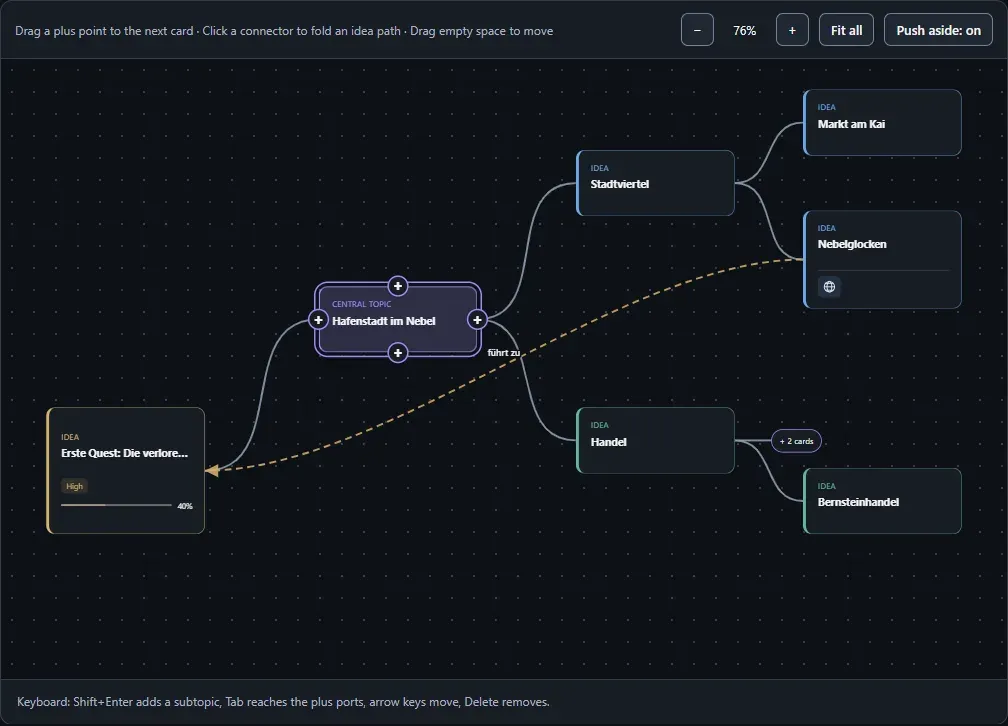
The mind manager is for brainstorming in a project: a main topic in the centre, subtopics around it, free ideas, images and connections across branches. Cards can carry rich text, a web link, a task and planning details.
Start a mind map
Section titled “Start a mind map”- Choose Mind manager in the sidebar and click New mind map.
- Enter a title. Rename the main topic in the details on the right.
- Click Save mind map whenever you want to keep the current state.
Add ideas
Section titled “Add ideas”- Subtopic adds an idea connected to the selected card. On the keyboard: Shift+Enter.
- Floating idea adds a card without a connection.
- Select a card: a plus point appears on each side. Click it and choose New card, Detailed card or New image object — the new element is placed on that side with a connector.
- Drag from a plus point to another card to connect two existing cards, or choose Connect to an existing card.
Move cards — they never overlap
Section titled “Move cards — they never overlap”Drag a card with the mouse or move it with the arrow keys. Cards never overlap:
- With Push aside: on (the default), cards in the way move aside, and the cards they hit move on in turn.
- With Push aside: off, the card you move jumps to the nearest free spot and the others stay where they are.
Ludarch remembers your choice. Zoom with the buttons, Fit all shows the whole map, and you move around by dragging the free canvas.
Fold branches
Section titled “Fold branches”Click a connector to fold the branch behind it: the target card and its subtopics disappear, and the connector shows how many cards are hidden, for example + 4. Click again to unfold. Folding is a view setting of your browser and does not change the map for others. To make a branch start folded for everyone, select the connector and tick the option for that in its details.
All ideas as a list shows every idea, including folded ones.
Design a card
Section titled “Design a card”Select a card and use the details on the right:
- Colour, notes and a web link. A link written in the card text works too — a globe on the card opens it.
- Card layout with header, body and footer. The body uses the same editor as documents, with headings, lists, tables and images.
- Add image places an image inside the card; Image object in the toolbar puts a standalone image on the canvas.
- Priority, progress, due date and the person responsible turn a card into a planning card.
- Link a task: a Kanban icon on the card jumps straight to that task on the board.
- AI generation for this idea lets an AI propose title and text (see AI generation in forms).
Click a connector to edit its label, arrow, Line style and Line color.
Mind maps on game objects
Section titled “Mind maps on game objects”Every game object has a Mind map tab. Create mind map starts a map with the object as its main topic; Edit in the Mind Manager opens it here.