
Files
Available in:BasicAdvancedTeam
Under Production → Files you find your project’s original files. When you upload, Ludarch checks the file type, size and checksum and stores the originals privately. Interrupted transfers can be resumed.
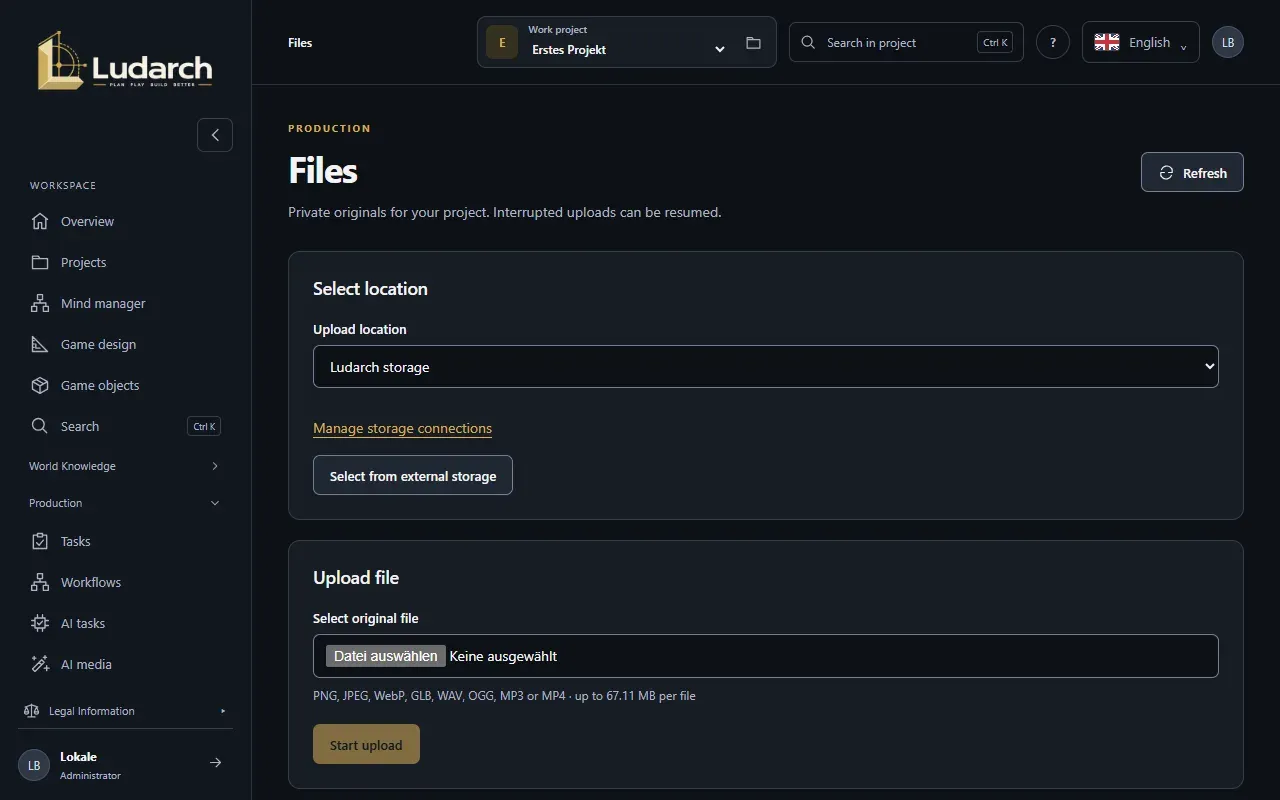
Where the files are stored
Section titled “Where the files are stored”Under Select location you decide where an upload goes:
- Ludarch storage — in the Advanced and Team plans.
- a storage connection to Google Drive, Dropbox or S3 — in every plan. The file then stays with your provider. See Storage connections.
Upload a file
Section titled “Upload a file”- Choose the Upload location.
- Under Select original file, choose a file — for example PNG, JPEG, WebP, GLB, WAV, OGG, MP3 or MP4.
- Click Start upload. The progress shows the percentage and the size transferred.
- Ludarch tells you when the file has been checked and stored privately.
Pause interrupts the transfer; the parts already received are kept.
Resume an interrupted upload
Section titled “Resume an interrupted upload”- In the list, click Continue next to Paused · can be resumed.
- Use Select the original file again to choose the same file. Ludarch checks that it really is the same one.
- Click Continue transfer.
You can resume an upload until the time shown; after that, incomplete data is removed. Cancel upload gives it up. Uploads to external storage are sent again in full after an interruption.
Use a file from external storage
Section titled “Use a file from external storage”With Select from external storage you choose a storage connection, browse its folders and click Use in the project next to the file. The file stays with the provider and is then available in the project.
What you can do with a file
Section titled “What you can do with a file”- Preview & Analysis — view images, 3D models, audio and video.
- Download original.
- Add to library — creates a medium with this file in the media library.
- To the trash … — removes the file; see Trash.