
Game objects
Available in:BasicAdvancedTeam
Game objects are the things your game is made of: factions, buildings, units, resources, production processes, research, effects, nature and equipment. Each object brings together its description, notes and sources, images and 3D models, its relationships to other objects and — for the engine — its game rules.
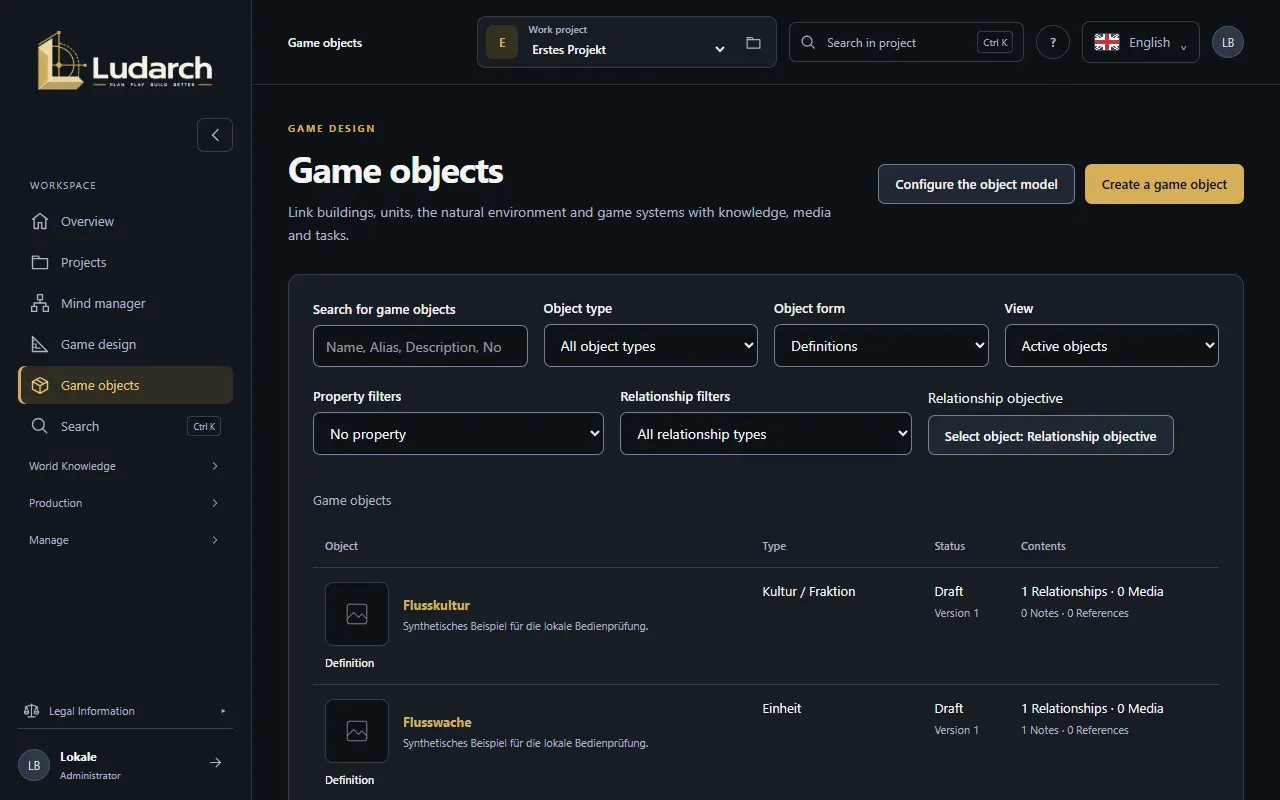
Create a game object
Section titled “Create a game object”- Choose Game objects in the sidebar and click Create a game object.
- On the Description tab, enter the Name of the game object and choose its Type of game object. The type cannot be changed later.
- Add a Brief description, other names under aliases, the Content approval status (Draft, Under review, Published) and the Person responsible.
- Describe the object in detail under Full description and fill in its Properties — the fields depend on the type.
- Click Create & back to list, or Create & create more to start the next object straight away.
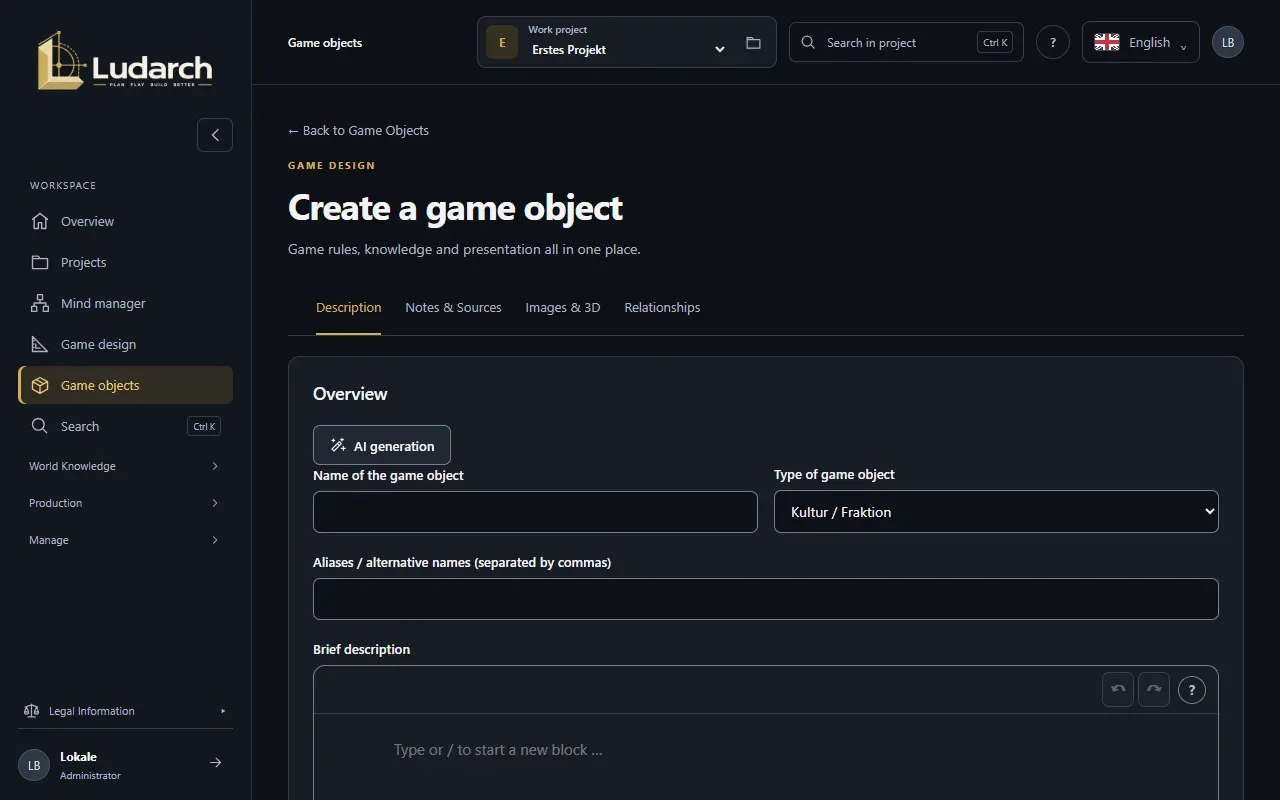
The tabs of a game object
Section titled “The tabs of a game object”| Tab | What you do there |
|---|---|
| Description | Name, type, status, responsibility, full description and properties. |
| Notes & Sources | Notes, linked entries from other areas (Link entry), reference documents and links, sources with their exact passage. |
| Images & 3D | Appearance and structure, images and GLB models, concept image briefs. |
| Relationships | How this object relates to others — for example produces, requires, unlocks. |
| Game rules | Rule specifications for the engine (resource, building, unit, research, recipe, effect …). |
| Mind map | Brainstorm about this object in a mind map (see Mind manager). |
| Canvas | A graph of the object and its relationships. |
| Tasks | Tasks linked to this object, and where the object is used. |
| Versions | Every saved version; open an old one read-only. |
Connect objects
Section titled “Connect objects”- Open the object and switch to Relationships.
- Click Add relationship and choose the kind of relationship, for example produces.
- Click Select target object and pick the other object.
- Optionally add a Quantity with its unit, a rhythm such as per minute, a Condition, and in which rule sets the relationship is valid.
- Save the object.
Every relationship can also be found from its target, so a resource shows which buildings produce it.
Add images and 3D models
Section titled “Add images and 3D models”- Open the Images & 3D tab and click Upload image / 3D model.
- Choose the Upload location: Ludarch storage (Advanced and Team) or one of your storage connections.
- Choose a PNG, JPEG, WebP or GLB file (up to 64 MiB), enter a Media title and the Rights / Source of the media.
- Click Upload & assign and save the object.
Select from media library attaches an existing image. For each image you choose its role — reference, concept draft, approved concept or production graphic — and whether it may be passed to external image tools.
Find objects
Section titled “Find objects”Use Search for game objects together with the filters for object type, Definitions or Instances, active or archived objects, property values and relationships. When the project organises its world into areas (regions, epochs, factions), the left column Game world lets you browse by area; Unassigned collects objects without an area.
Look at the relationships as a graph
Section titled “Look at the relationships as a graph”The Canvas tab draws the object and its neighbours. Choose the Relationship depth (1–3 levels) and the Direction, click a node to see its details, double-click it to make it the centre, and drag the background to move around. Continue here follows a node, Open details page opens it.
Configure the object model (administrators)
Section titled “Configure the object model (administrators)”With the right to manage game objects you see Configure the object model. There you:
- add object types and their fields under Object types & fields (text, number, yes/no, selection, reference),
- define your own Relationship types,
- set up the world structure and rule sets under Outline & Rule Sets — or add a genre template,
- describe the project style and concept image rules under Visual design.
Click Save object model when you are done.