
Documents
Available in:BasicAdvancedTeam
Under World Knowledge → Documents you work out ideas, stories and design texts. A document has a title, a brief description and a formatted text. You can assign it to a design area and link it to cultures, other documents and expertise.
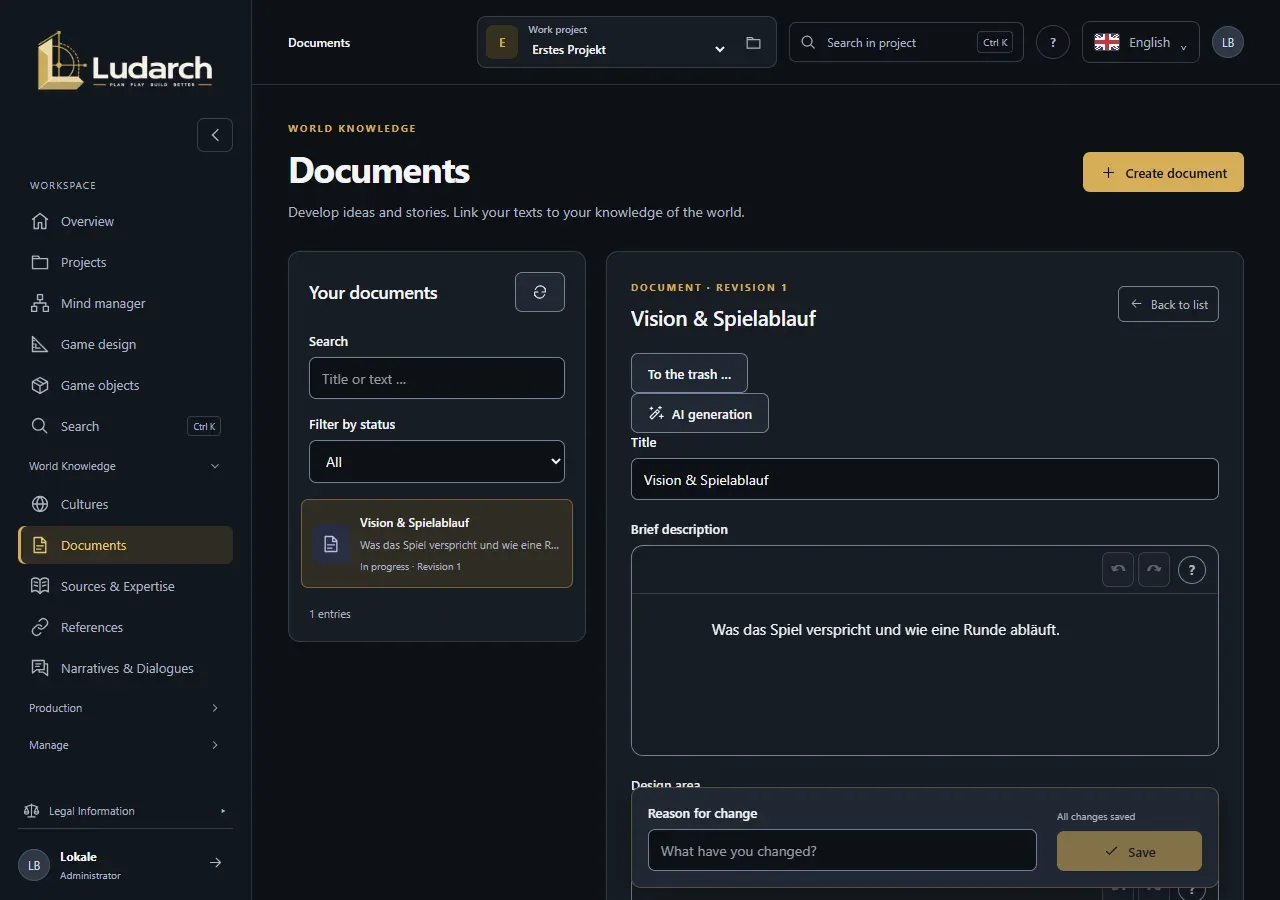
Create a document
Section titled “Create a document”- Click Create document.
- Enter the Title and, if you like, a Brief description.
- Under Design area, choose an area of your game design or leave General document.
- Write the text in the editor.
- Click Save.
The editor
Section titled “The editor”- Type / or click + to insert headings, lists and tables.
- Select text to format it. Move blocks with the ⋮⋮ handle.
- In tables, use the plus at the edge to add rows and columns. Tab jumps to the next cell, Ctrl+Enter leaves the table.
- Ctrl+Z undoes, Ctrl+Shift+Z redoes. The ? in the toolbar shows these tips.
From a template in game design
Section titled “From a template in game design”In Game design, every area card has two links:
- Create from template opens a new document with the area name as its title and a heading for each guiding question of the area — for example Game promise and target audience in Vision & Gameplay.
- View documents shows only the documents of this area.
Find documents
Section titled “Find documents”On the left under Your documents, use Search to search titles and text, and Filter by status to show Draft, In progress or Finalised.
Editing status and object references
Section titled “Editing status and object references”Below the text, open Editing status & object references:
- Editing status: Draft, In progress or Finalised.
- Object references: search for cultures, other documents or expertise and tick everything the document refers to.
The references appear as links below the form. In the target, Used in shows the other way round which documents mention it.
Save changes
Section titled “Save changes”For every change you write a Reason for change and click Save. Every save becomes a new revision. How to compare and restore revisions, and how to handle changes made at the same time, is described under Cultures — it works the same way for documents.
- At the bottom of the document you find linked tasks, uses in game objects and running workflows.
- To the trash … removes the document. You can restore it from the trash.
- To export a single document as a Markdown file, go to Import and export.