
Plans and billing
Available in:BasicAdvancedTeam
Under Manage → Pricing & Billing you book and change your studio’s plan. Payment is handled by Stripe; your invoices and payment methods are kept there. What the plans include is described in Plans: what is included.
Go to payments and subscription
Section titled “Go to payments and subscription”- Open Pricing & Billing. Under Studios with billing access you see all studios whose billing you may view.
- Click your studio and then Payments & Subscriptions.
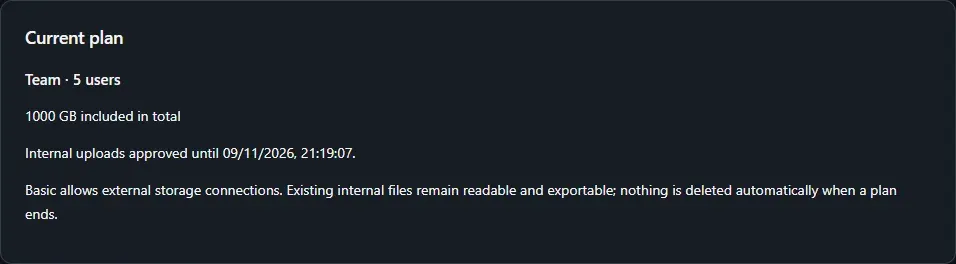
At the top, the Current plan area shows what applies right now: plan, number of users, included storage, status and end of the billing period.
After you register yourself, Ludarch shows Welcome to Ludarch once, with the Advanced and Team plans. If you choose one of them, this page opens with that plan preselected; Stay on the Basic plan closes the notice for good.
Book a plan for the first time
Section titled “Book a plan for the first time”- In the Choose a plan area, choose the Plan: Advanced (per user) or Team (per studio with five accounts).
- Enter the number of User seats; for Team, the number of accounts (at least five, every further one costs extra). The monthly price is shown straight away.
- Under Allow additional storage (GB), set how much storage may be used beyond the included quota. Additional storage costs €0.10 per GB-month actually used; the setting caps uploads and costs. 0 means no additional storage.
- Check the number of users, the price and the storage limit, and tick the confirmation box.
- Click Book paid plan and then Open Stripe Checkout.
- Pay in Stripe. Back in Ludarch, click Synchronise status if the status does not change by itself.
Change your plan or users, or cancel
Section titled “Change your plan or users, or cancel”- In the Change plan or number of users area, choose the new plan or the new number of users. To cancel, choose Basic – cancel at the end of the period.
- Click Calculate change. The Confirm plan change dialog shows what is due now, what applies monthly afterwards and from when.
- Click Confirm chargeable change (or Cancel at the end of the period when you cancel).
- Upgrades take effect immediately after successful payment and are charged pro rata.
- Downgrades and cancellations take effect at the end of the billing period. You cannot reduce below the number of active members.
- You can take back a scheduled cancellation or downgrade with Withdraw scheduled change, as long as it has not yet taken effect.
When a paid plan ends, nothing is deleted: internal files stay readable and exportable, but new internal uploads are no longer possible.
Limit additional storage
Section titled “Limit additional storage”In the Limit additional storage area you can change the Additional storage limit (GB) at any time. Click Check storage limit and confirm. A lower limit blocks further uploads but does not delete any files. The Storage page shows how much is in use.
Redeem a voucher code
Section titled “Redeem a voucher code”In the Voucher code area, enter a code and click Redeem code.
- Without a subscription, the code is applied automatically at the next checkout.
- With a subscription, it applies from the next invoice.
- Additional storage is not discounted. While a checkout is open, you cannot redeem a code.
Invoices, billing details and payment methods
Section titled “Invoices, billing details and payment methods”- Invoices lists the invoices of the selected booking with amount and status. Open invoice and PDF open them at Stripe; Load older invoices shows earlier ones.
- Storage billing lists the monthly statements for additional storage.
- Billing details & payment methods opens the Stripe customer portal. There you change your address, tax number and card. Plan changes and cancellations are done in Ludarch.
For operators
Section titled “For operators”The Pricing catalogue with price versions, voucher codes, draft contracts, cost records, monthly statements and Billing rights are operator tools. They are described in the operator handbook.