
Projects
Available in:BasicAdvancedTeam
A project is a workspace of its own — with its own tasks, files, media and team. Projects can stand alone or form a hierarchy: a universe (master) with several games, and games with game sections.
Find and open a project
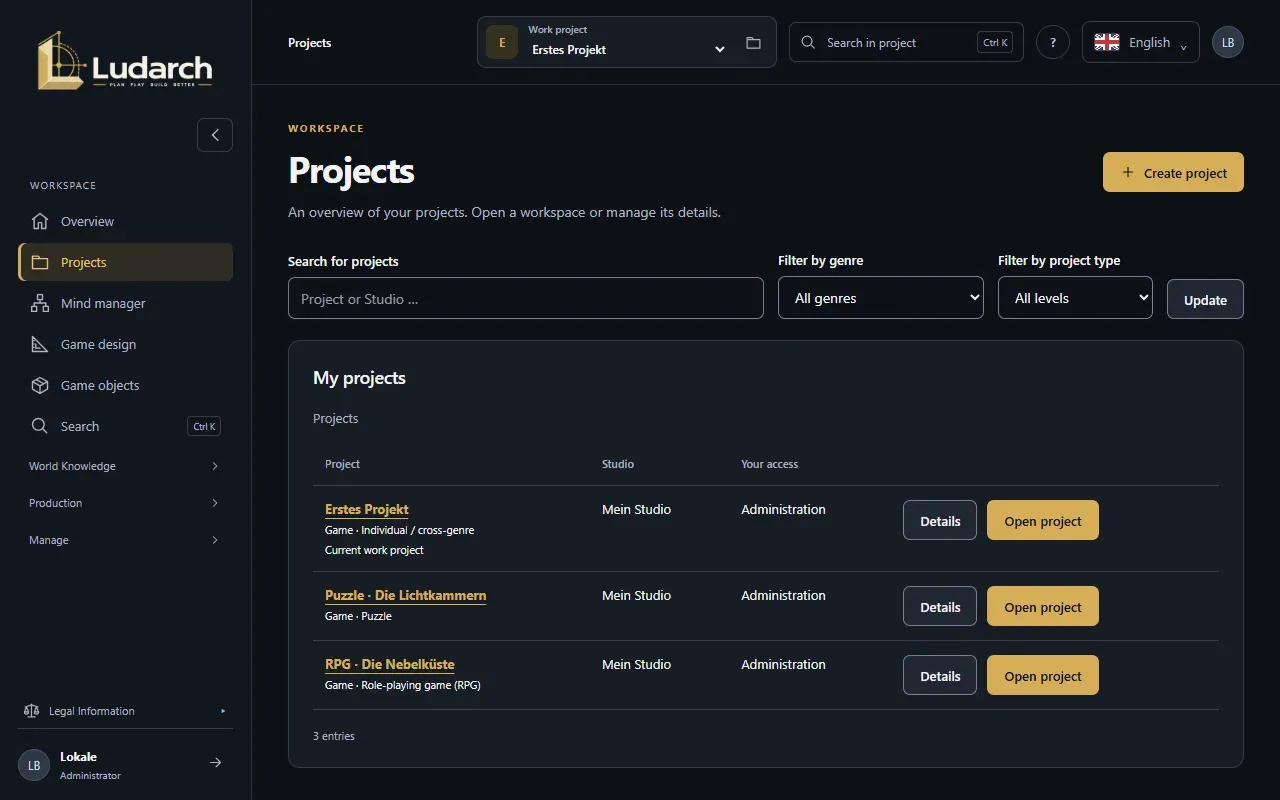
Section titled “Find and open a project”Choose Projects in the sidebar. The list shows every project you can access, with its studio and your access. Sub-projects are indented below their parent.
- Open project makes the project your work project and opens its overview.
- Details shows the project page with its facts and settings.
- Use Search for projects, the genre filter and the type filter to narrow the list.
Create a project
Section titled “Create a project”You need administration rights in a studio — or in a project, to create sub-projects there.
- Click Create a project.
- Choose the Studio and enter the Project name. A Project description is optional.
- Choose the Project type: Master / Universe, Game or Game section.
- Under Parent project, keep Standalone project or choose the project this one belongs to.
- Choose the Main genre and, if you like, up to four Additional genres. The genre decides which design areas Ludarch suggests (see Game design).
- Under Sections in the navigation, tick the areas this project uses — for example Narratives & Dialogues or Music production. The genre preselects sensible ones.
- For a new standalone project you can name its world under Name of the new world.
- Click Create & Open Project.
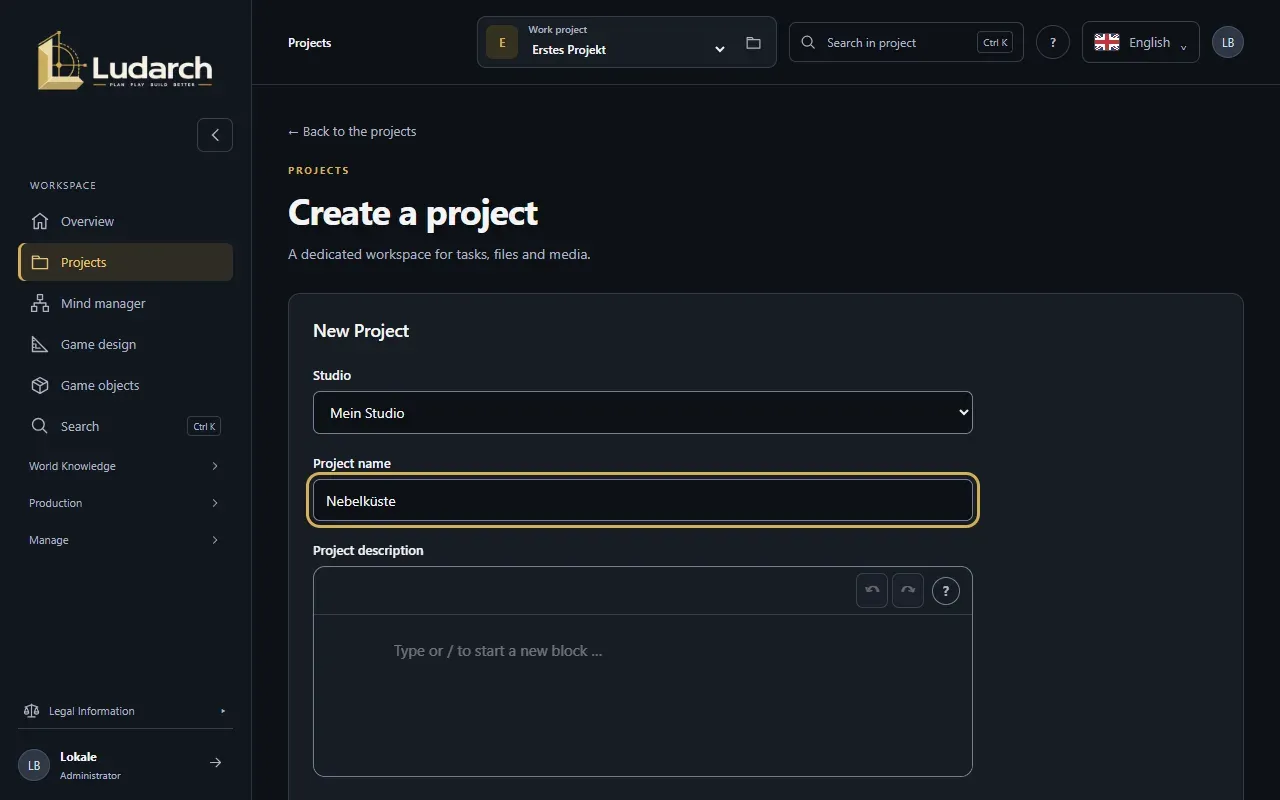
You become administrator of the new project. Nobody else gets access automatically.
Project page
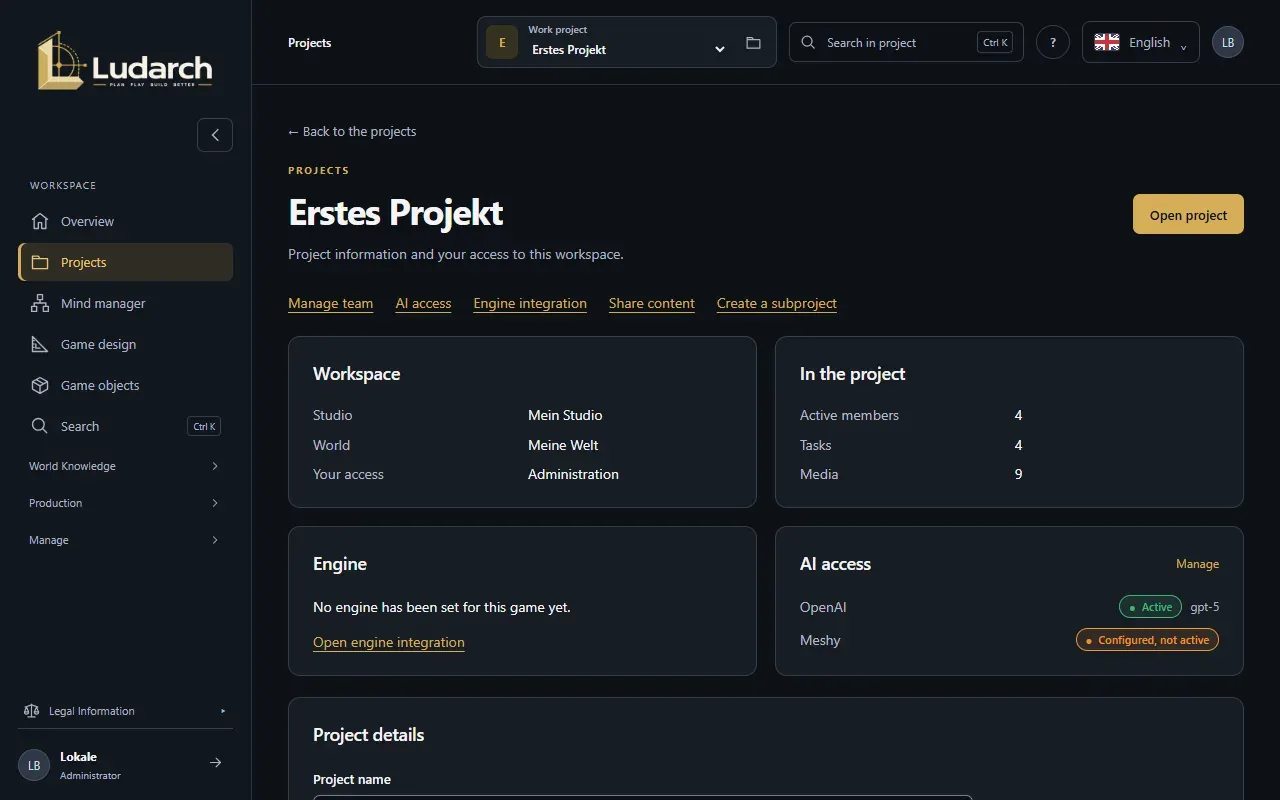
Section titled “Project page”Details (or a click on the project name) opens the project page. It shows the studio, the world, your access, the number of members, tasks and media, the engine and the connected AI services. Administrators also see:
- Manage team — who may work in this project (below).
- AI access — AI keys shared by the project team (Project AI access).
- Engine integration — the game engine for this project (Engine integration).
- Share content — content released to sub-projects (Shared library).
- Create a subproject — a new project below this one.
Under Project details administrators change the name, description, type, genres and areas, then click Save & back to overview.
People in a project
Section titled “People in a project”- On the project page, click Manage team.
- Click Add member, or Edit access next to a person.
- Enter the Username of an existing account and choose the Project role: Read, Edit or Project administration. Remove access takes the person out of the project.
- Click Save access.
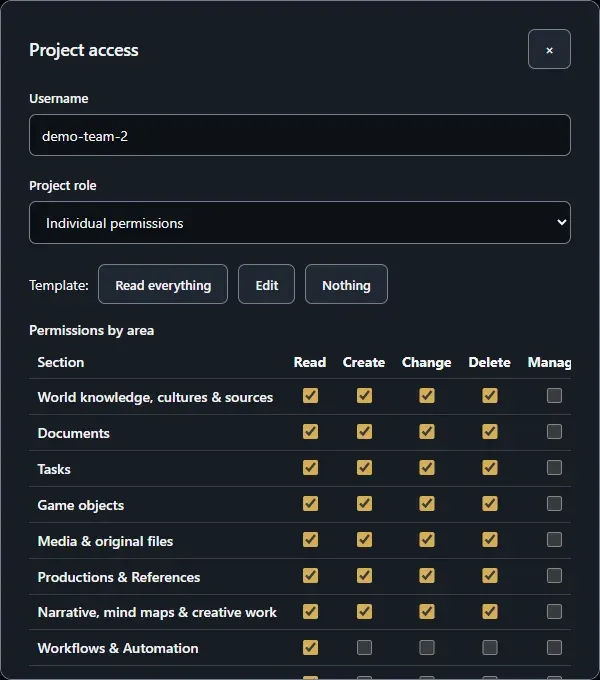
In the Team plan you can also choose Individual permissions and decide for each area what the person may read, create, change, delete and manage. The buttons after Template: fill the table quickly. Team administrators always have every right in every project. New people join the studio through Team.
A universe with several games
Section titled “A universe with several games”- Create a project of type Master / Universe for the shared canon.
- On its project page, use Create a subproject to add a Game.
- Below a game, add Game sections the same way.
- Release canon from the universe to its games with Share content (see Shared library).
Every sub-project has its own team and content. It only reads the versions its parent projects have explicitly shared.