
Tasks
Available in:BasicAdvancedTeam
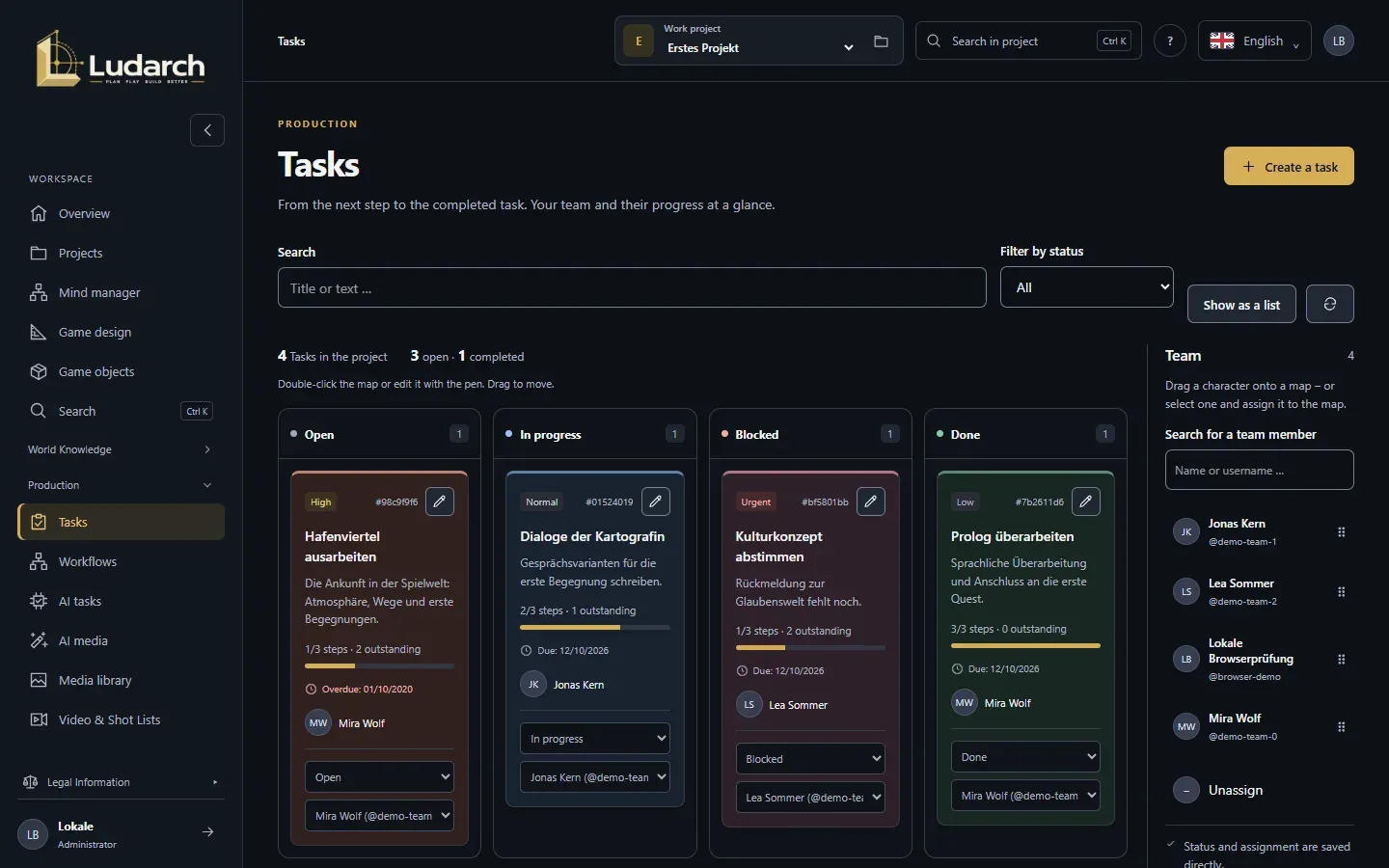
Under Production → Tasks you plan the work on your project. The board shows every task as a card in one of four columns: Open, In progress, Blocked and Done.
What a card shows
Section titled “What a card shows”- the Priority (Low, Normal, High, Urgent) and a short ID,
- the title and the start of the description,
- the progress of the steps, for example 2/3 steps · 1 outstanding,
- the due date — in red as Overdue once it has passed,
- the number of object references and the person responsible.
Create a task
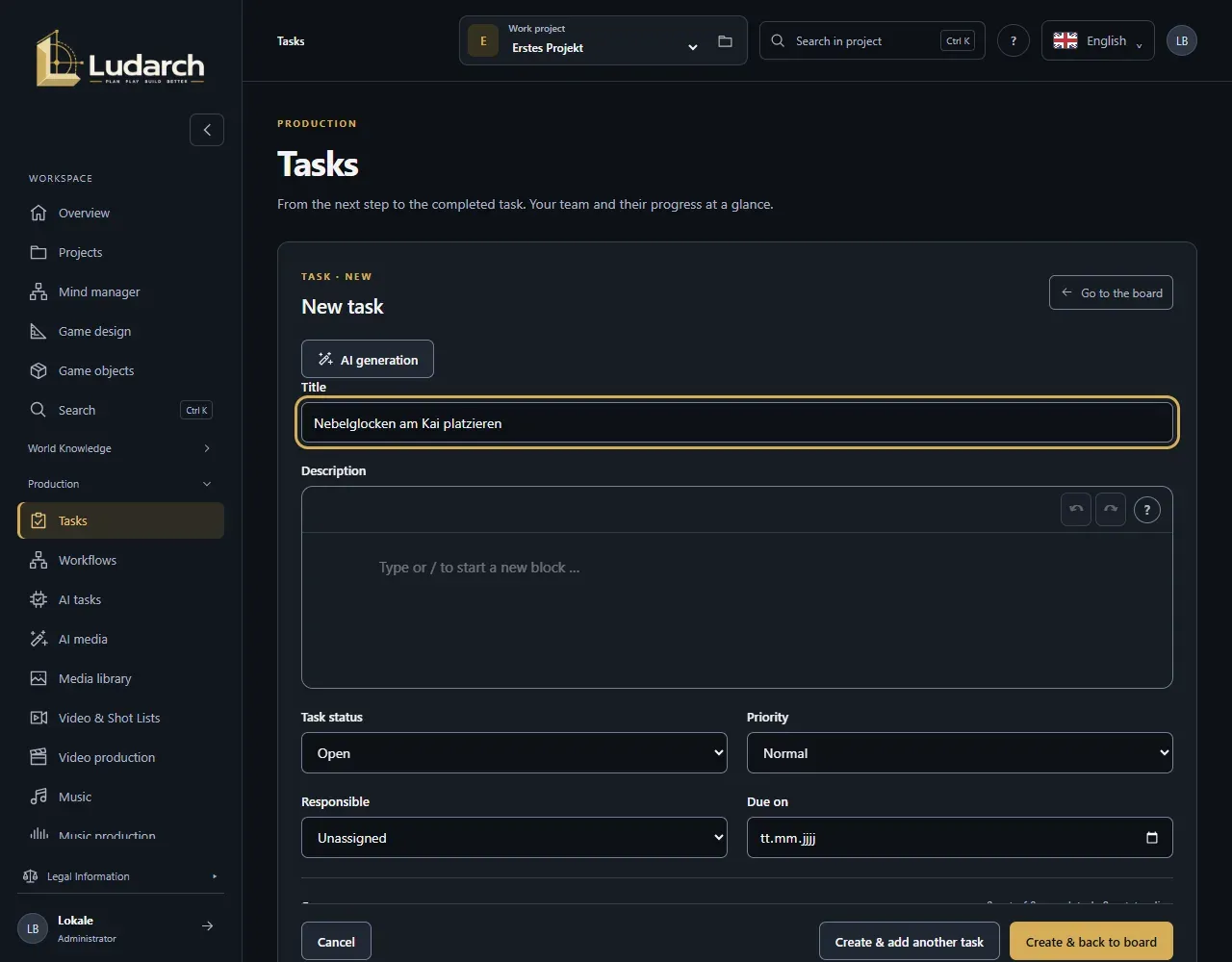
Section titled “Create a task”- Click Create a task.
- Enter the Title and describe the task under Description.
- Choose the Priority, who is Responsible and the Due on date.
- Under Steps, split the task into steps: type the text in New step and press Enter. You can add up to 50 steps.
- Under Object references, link what the task is about — cultures, game objects, expertise or documents.
- Click Create & back to board or Create & add another task. For the next task, the person responsible and the priority stay preset.
Move a task
Section titled “Move a task”Drag a card to another column. The change is saved at once. You can also choose the status in the selection field on the card. Escape cancels dragging.
Not every change is possible:
- Done tasks have to be reopened first (back to Open).
- Blocked tasks have to be unblocked first (to Open or In progress) before they can be done.
Assign tasks
Section titled “Assign tasks”On the right is the Team sidebar with all members of the project.
- Drag a person onto a card to assign them.
- Or click a person: every card then shows Assign name. This way you assign several cards one after another. Deselect ends this.
- You drag or click Unassign the same way.
Status and assignment are saved straight away. You can also use the Assign … selection field on each card.
Edit a task
Section titled “Edit a task”- Double-click a card or click the pencil.
- Change what you need. Tick off completed steps.
- If you like, enter a Reason for change and click Save & back to board.
At the bottom of the form you see the history of all revisions. You can restore an old version as a new revision. If someone else saved at the same time, Ludarch keeps your input and lets you compare.
Filter and show as a list
Section titled “Filter and show as a list”Narrow the board with Search and Filter by status. Show as a list switches to a list with 25 tasks per page; View as a board switches back. Each column loads 20 cards; Load more shows the next ones.