
Media library
Available in:BasicAdvancedTeam
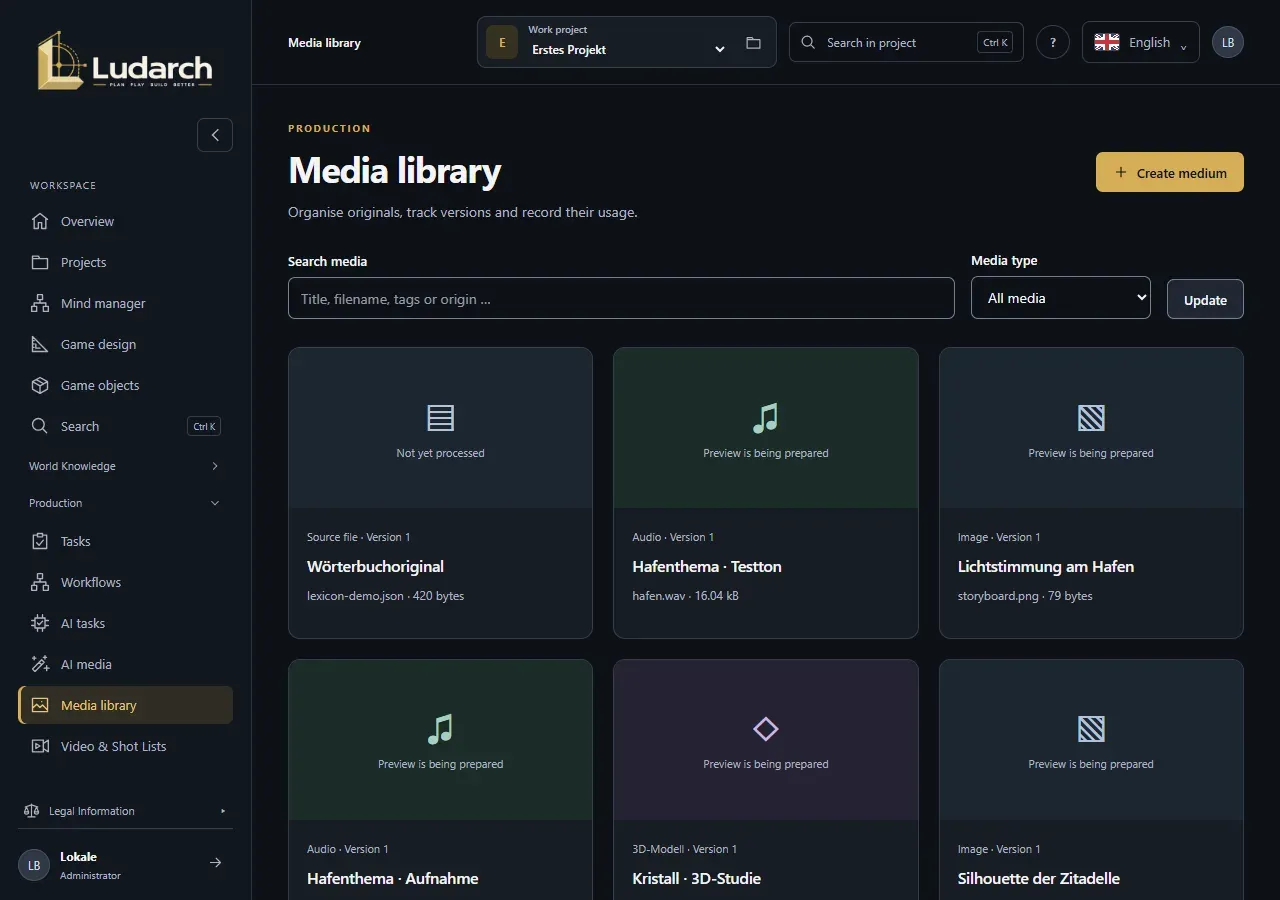
The Media library under Production → Media library organises your project’s originals: images, 3D models, audio, video and source files. For each medium you record its source and usage rights, track its versions and see where it is used.
Create a medium
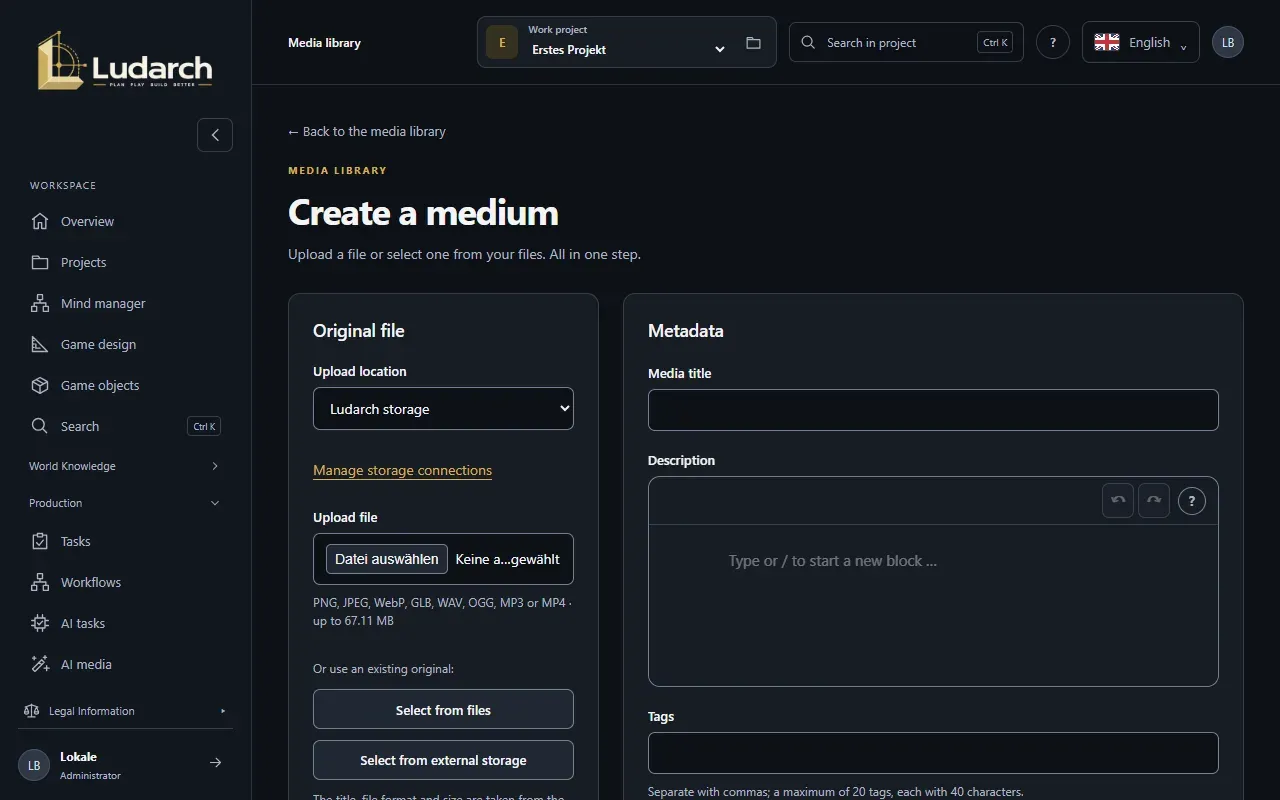
Section titled “Create a medium”- Click Create a medium.
- Choose the Upload location: Ludarch storage (Advanced and Team) or one of your storage connections. In the Basic plan, only external storage is available.
- Under Upload file, choose a PNG, JPEG, WebP, GLB, WAV, OGG, MP3 or MP4 file. Or use Select from files or Select from external storage to pick an existing file.
- Check the Metadata: Media title, Description, Tags, Source and Usage rights. Ludarch takes the title and format from the file.
- Click Create & back to library.
If an upload stops, Ludarch resumes it the next time you save with the same file.
Find media
Section titled “Find media”Search media searches titles, file names, tags and sources. Media type filters by image, 3D model, audio, video or source file. Every card shows a preview, the type, the version and the tags.
A medium in detail
Section titled “A medium in detail”| Tab | What you do there |
|---|---|
| Details | View the preview, change the metadata, Download original. A new file becomes a new version. |
| Versions | Every version with its file, tags, source, rights and checksum; Download original Vn. |
| Uses | Where the medium is used — in game objects, productions and workflows. Add usage links it to a culture or a document. |
Uses are tied to a specific version: when you upload a new version, existing uses keep pointing to the version that was chosen when they were linked.
View 3D models, audio and video
Section titled “View 3D models, audio and video”- Open 3D model shows GLB models up to 32 MiB with textures, skeletons and animations. Drag to rotate and use the mouse wheel to zoom; the buttons rotate, zoom and reset the view. Play animations under Animation.
- Open audio and Open video start a player. Nothing plays automatically.
- Ludarch creates a preview for images. While it shows Processing…, the card updates by itself.