
Music: works and production
Available in:BasicAdvancedTeam
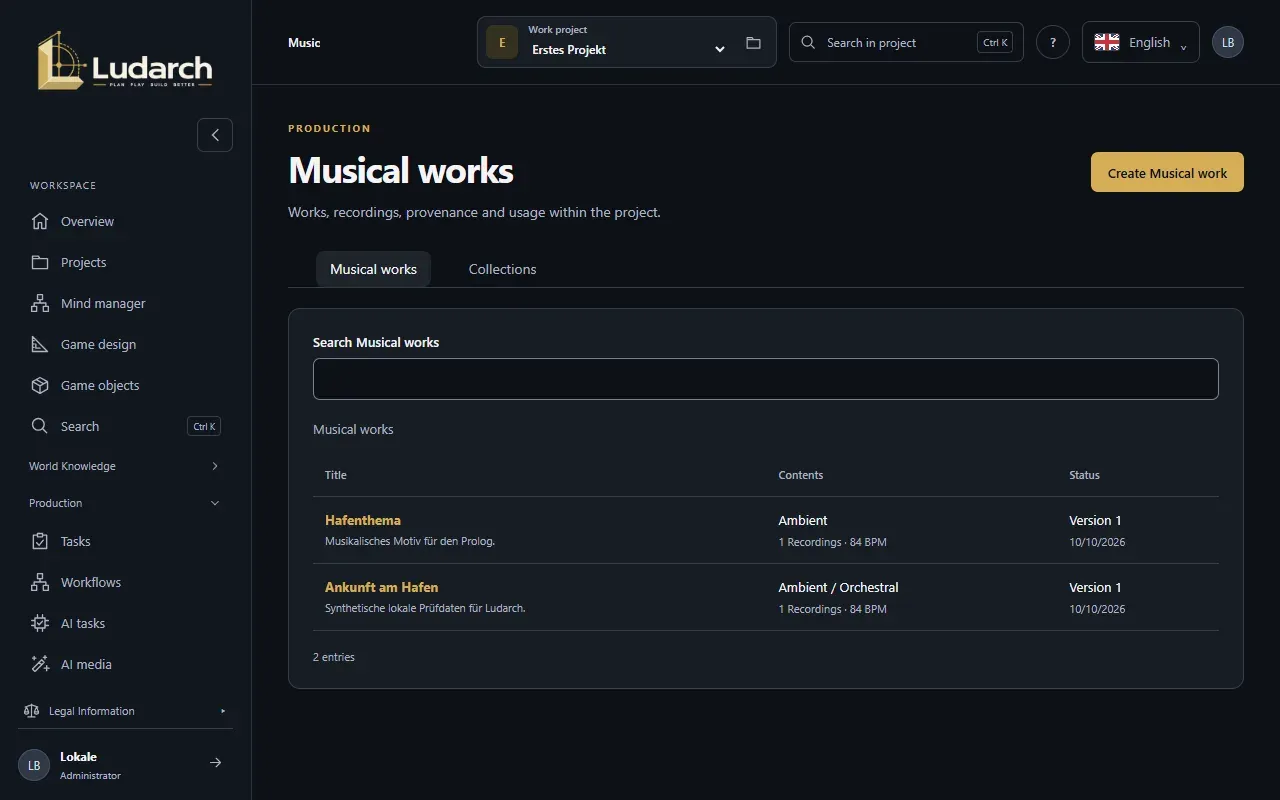
For your game’s music there are two pages under Production:
- Music manages musical works with their recordings, rights and use — and collections, such as a soundtrack.
- Music production plans arrangements and mixes with stems, loops and adaptive states.
Both appear when the project has ticked the area Music production under Sections in the navigation (see Projects). To create music with AI, use AI media.
Create a musical work
Section titled “Create a musical work”- Open Music and click Create musical work.
- Enter the Title, Brief description, Composition / Author, Style / Genre, Tempo (BPM) and Key.
- Record the Origin / Development, the Usage rights and the Use in the project.
- Under Recordings, link up to 20 audio files from the media library.
- Click Create & back to list.
Tempo and key are editorial details; Ludarch does not analyse the recordings.
Collections
Section titled “Collections”On the Collections tab you group up to 100 musical works, for example all the pieces of one chapter. The recordings stay with the works.
Music production
Section titled “Music production”In a saved musical work, Arrangements, Mixes & Stems takes you to Music production.
Arrangement
Section titled “Arrangement”Create an Arrangement, choose the Musical work and describe the Instrumentation & musical structure with tempo and key.
Mix and stems
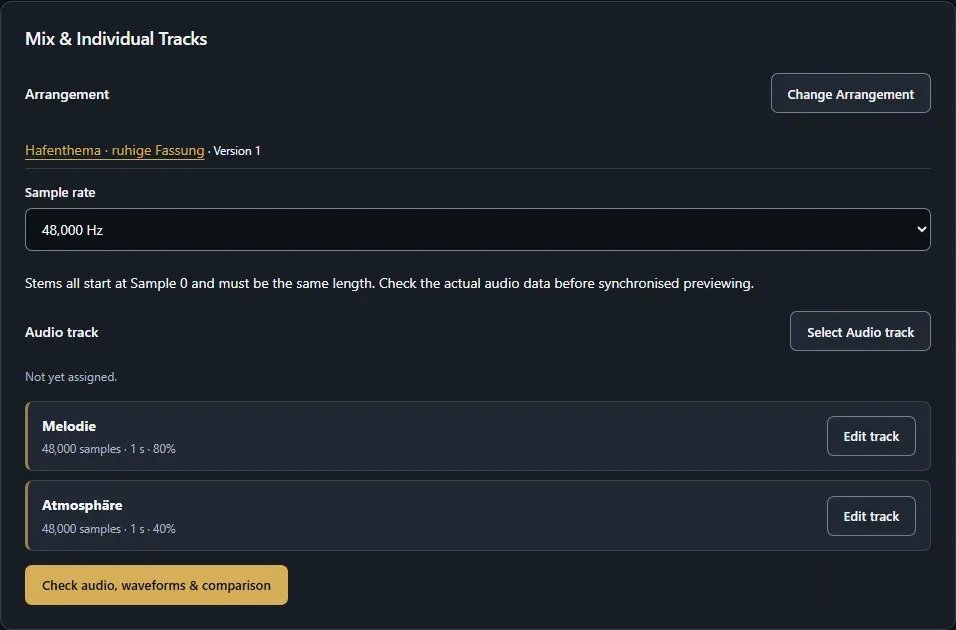
Section titled “Mix and stems”- On the Mixes & Stems tab, create a mix and choose the Arrangement and the Sample rate.
- Under Audio track, add up to 16 stems. For each track you set the name, audio file, length, Volume (%) and Mute.
- Click Check audio, waveforms & comparison. Play in sync lets you hear all tracks together, one at a time or as a loop.
- Save.
Compare mix versions
Section titled “Compare mix versions”Under Compare mix versions, choose a Comparison mix of the same arrangement and switch between A · Current draft and B while you listen.
Loops, transitions and adaptive states
Section titled “Loops, transitions and adaptive states”- Add marker sets a loop or transition with a start and an end.
- Add state describes an adaptive state — such as Combat — with the active tracks, the next state and the loop or transition that leads there.
Usage & approval
Section titled “Usage & approval”Under Usage & Approval you record the usage rights and specific uses, and tick Approved for documented use once the mix may be used.