
Engine integration
Available in:BasicAdvancedTeam
Every game uses exactly one tested engine profile. Under Engine integration you set it, compile the game rules of your game objects into a rule package and prepare start scenarios. You reach the page from the project page or from the sidebar.
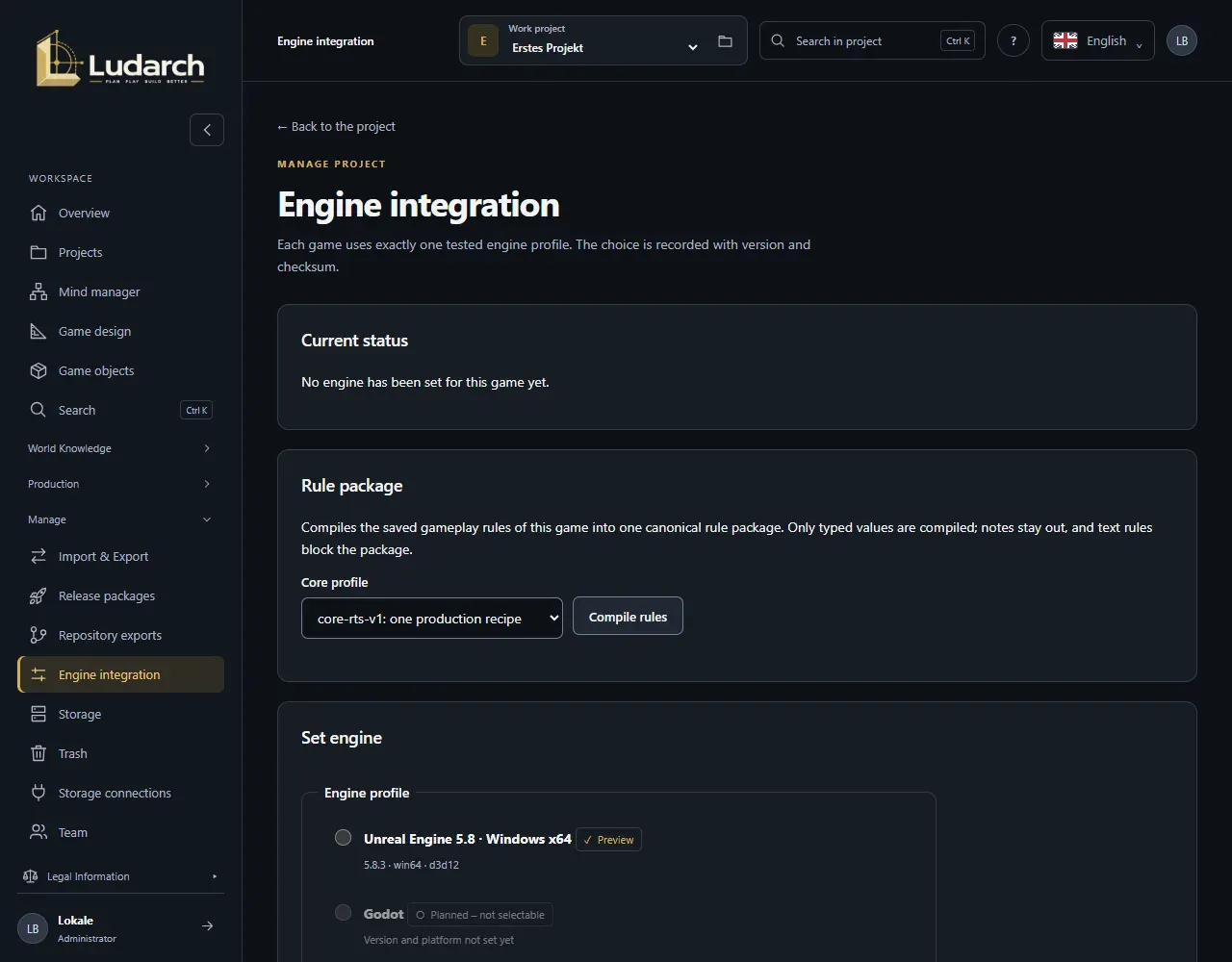
Master projects stay engine-neutral; each game chooses its own engine. Game sections use the engine of their game. Only project administrators can change the engine configuration.
Current status
Section titled “Current status”Current status shows whether an engine has been set, with its profile, engine version, operating mode, reason and checksum. Supported capabilities shows what the profile can do — data assets, packages, rendering, runtime core, version control, reimport — and whether this has been proven in the prototype.
Set the engine
Section titled “Set the engine”- Choose a profile under Engine profile. At the moment, Unreal Engine 5.8 · Windows x64 is available as a preview; Godot, Unity and Babylon.js are planned.
- Choose the Operating mode:
- Data only — Ludarch delivers definitions, media and documentation; the game logic stays in your own framework.
- Ludarch runtime — in addition, the tested Ludarch core runs the defined game rules; the engine stays in charge of rendering, movement and world queries.
- Enter the Reason for the decision.
- Click Set engine.
Every change is recorded under History with its revision and reason. Switching to a different engine is not possible yet.
The Godot 4 and Babylon.js target profiles of release packages are independent of this: they deliver a data snapshot for import into these engines and do not need an engine profile to be set.
Compile game rules
Section titled “Compile game rules”- Under Rule package, choose the Core profile, for example core-rts-v2: production and research.
- Click Compile rules.
- The result is Compiled or Blocked. Below the findings, Open object takes you to each game object with an error or a notice.
- Once the package is compiled, click Download rule package.
Only typed values from the game rules go into the rule package. Notes stay out, and rules that are only described as text block the package.
Start scenario
Section titled “Start scenario”If the core can run the rule package, you create a Start scenario: which producers are in place at the start, with which starting stock of resources, what has already been researched or is already available, and a Seed.
- Click New start scenario, enter the Name of the start scenario and set the starting values.
- Enter a Reason for the change and click Save start scenario.
- Choose the scenario and click Create core configuration, then Download core configuration.