
Sources and expertise
Available in:BasicAdvancedTeam
Under World Knowledge → Sources & Expertise you keep originals, classify statements about your world and find knowledge in the project again. Every save becomes a new version; sources and older versions are kept.
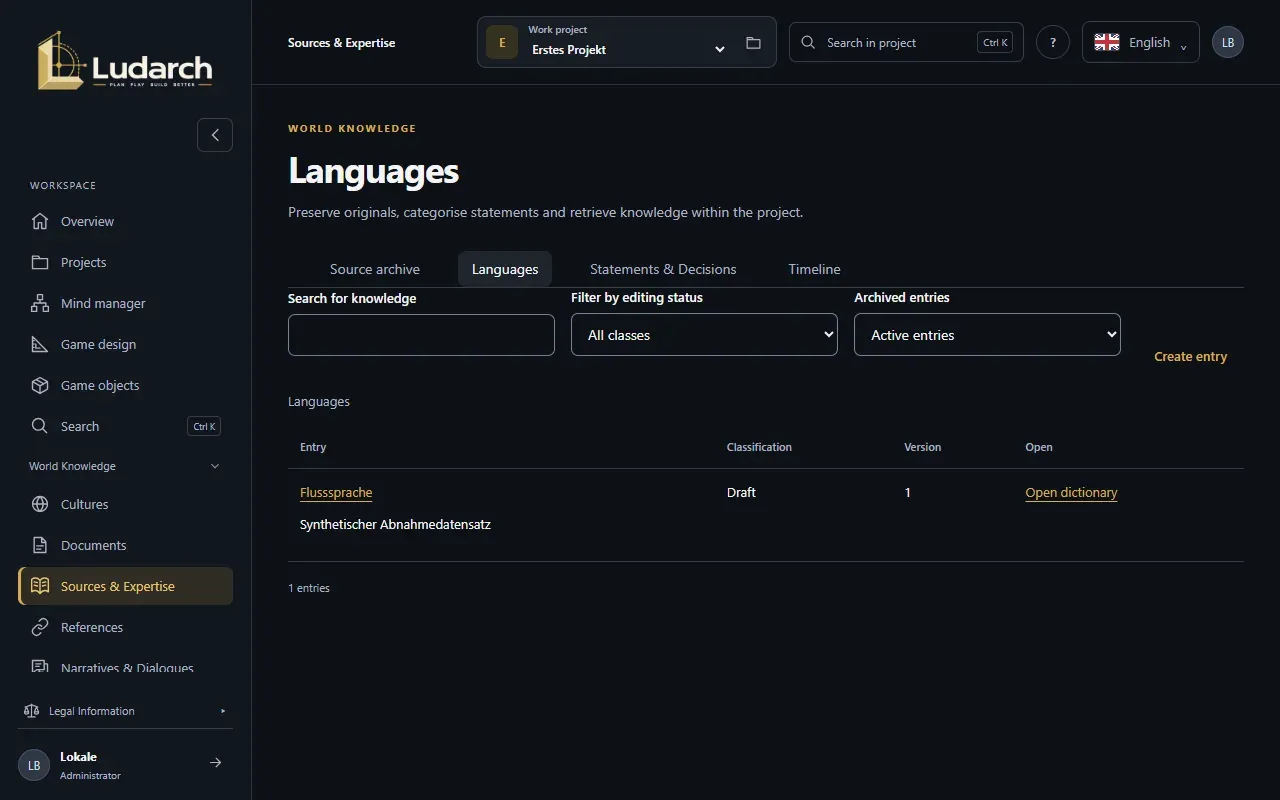
The four sections
Section titled “The four sections”Choose the section at the top:
| Section | What it is for |
|---|---|
| Source archive | Original files and sources, for example a concept paper or a word list. |
| Languages | The languages of your world with grammar, pronunciation, naming rules and a Dictionary. |
| Statements & Decisions | Individual statements about the world and author decisions, with the passages that support them. |
| Timeline | Events with a calendar, a date and how certain the timing is. |
Narrow the list with Search for knowledge, Filter by editing status and Archived entries.
The editing status
Section titled “The editing status”Every entry has an Editing status:
- Draft — a first note, not yet agreed.
- Suggestion — put up for discussion.
- Accepted — applies to the project.
- Disputed — someone disagrees.
- Superseded — replaced by a newer statement.
Archive an original source
Section titled “Archive an original source”- Open Source archive and click Create entry.
- Under Upload original file, choose the file. Ludarch takes over the title and file name. To use a file from the media library instead, click Select an existing file.
- Choose the Upload location: Ludarch storage (Advanced and Team) or one of your storage connections.
- Choose the Role of the source (Primary source, Reference, Older version …) and add a date and a brief description.
- Click Save and go to overview.
The file is saved as a medium with the tag Source. The entry points to exactly this version.
Record a statement or decision
Section titled “Record a statement or decision”- Open Statements & Decisions and click Create entry.
- Enter the Title / Word form, choose the Editing status and describe the statement.
- Choose the Knowledge perspective — world fact, a group’s conviction, myth, a character’s knowledge or Game Rules / Design — and, if needed, the epoch in which it applies.
- If the statement replaces an older one, click Assign superseded statement.
- Switch to the Sources & Links tab, click Assign source and fill in the Passage and the Original excerpt.
- Save.
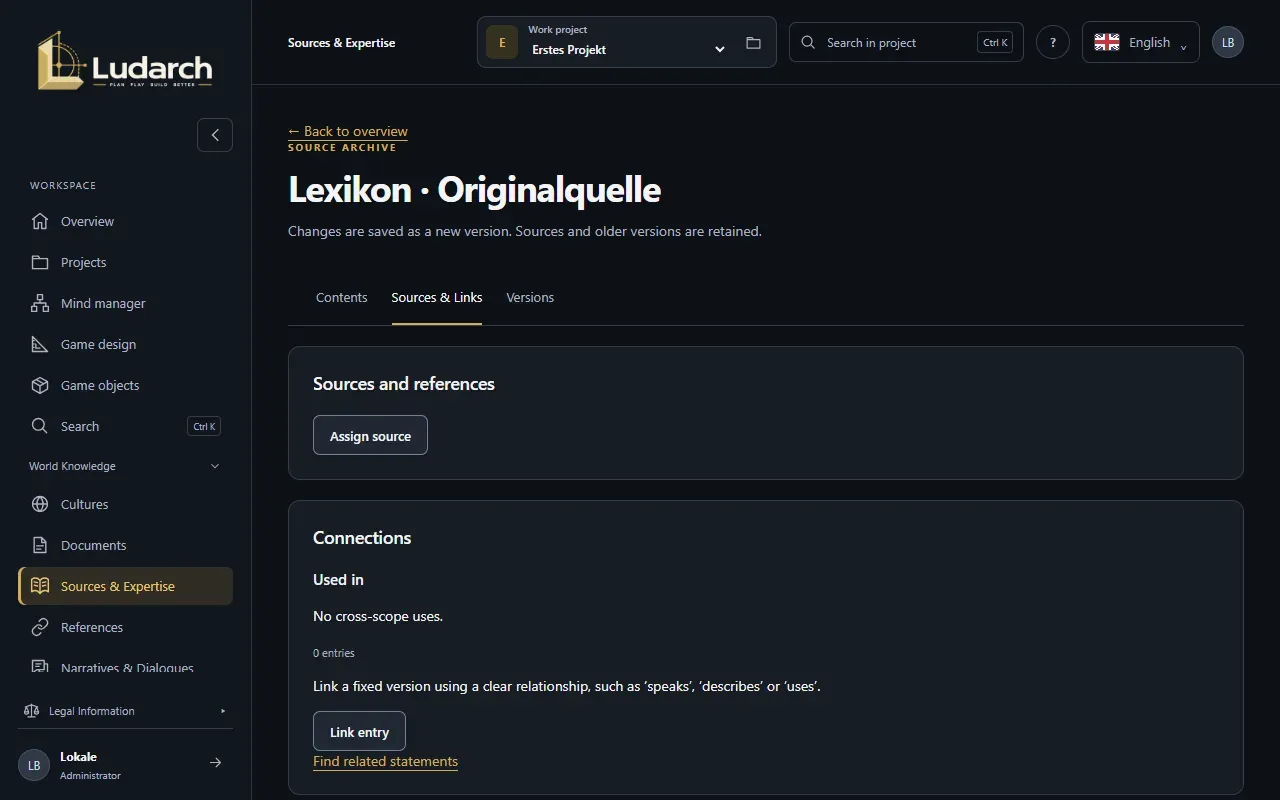
Under Connections, use Link entry to link the entry to game objects, cultures, documents, narrative entries or media. Describe the relationship in your own words, for example speaks or describes.
Language and dictionary
Section titled “Language and dictionary”- Under Languages, create a language and save it — with its language code, grammar, pronunciation and naming rules.
- Click Open dictionary in the list or in the language.
- Click Create entry. The language is already selected. Enter the word form, the Word ID within the language and the meaning, and optionally the pronunciation (IPA), part of speech and derivation.
- Save.
Import a dictionary from a source
Section titled “Import a dictionary from a source”If a word list is stored as a JSON file in the source archive, you can import it in one go: open the saved language, click Select archived JSON source, check the preview and click Apply verified mapping. New words start as Draft; words that already exist stay unchanged. If the import stops, simply start it again with the same source.
Timeline
Section titled “Timeline”An event needs a Calendar / Era. You can add the date as written in the original, the start and end year, and the Temporal certainty: Exactly, Approximately, Unknown or Conditional Future.
Versions and archive
Section titled “Versions and archive”- The Versions tab lists every version with date, author and reason. Click one to open it read-only.
- Archive takes an entry off the working list without deleting it. You find it again with the Archive only filter.