
AI media
Available in:BasicAdvancedTeam
Under Production → AI media you prepare generation jobs, start them when you are ready and add the results to the media library. A draft costs nothing; only your approval starts a job at the provider. The entry appears when the project has ticked the area AI Tasks & Media under Sections in the navigation (see Projects).
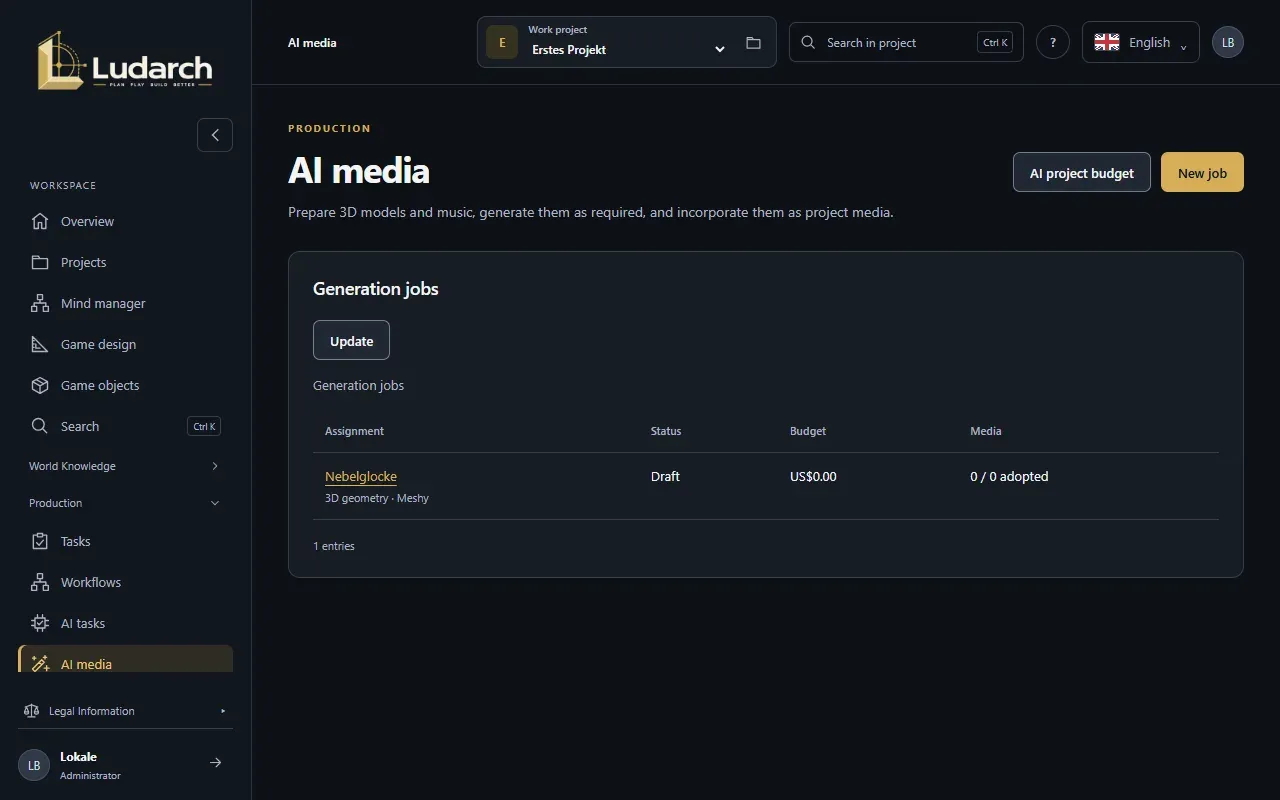
You need a connection to Meshy or Tripo — your own under Personal AI connections, or one for the team under Project AI access.
3D model with Meshy
Section titled “3D model with Meshy”- Click New job and choose 3D model with Meshy under What would you like to create?.
- Enter a Title and describe under Description of the 3D model what you want.
- Choose the Topology (Triangles or Mostly quads), a polygon count if you like, and a Pose.
- Record the rights and terms of use for the result.
- Click Save & prepare to start.
- Under Approve generation, check the provider, model and cost, tick the box and click Start generation.
The job shows its progress as a percentage. When the result is ready, check the geometry.
Add textures
Section titled “Add textures”When a 3D job shows Result ready, click Prepare textures. Describe the textures, optionally choose Generate PBR textures and a Texture resolution (2k, 4k or 8k), and start as above.
Adopt the results
Section titled “Adopt the results”- In the job, under Import results into the media library, choose the Upload location: Ludarch storage (Advanced and Team) or a storage connection.
- On the result, click Apply file & medium.
- Open file → takes you to the new entry in the media library.
Music with Suno
Section titled “Music with Suno”Music with Suno is experimental: a browser helper creates the music in your own Suno session, where you are signed in.
- Choose Music with Suno.
- Describe the Music style and production guidelines. For vocals, enter the Lyrics and song structure; otherwise choose Instrumental without vocals.
- If you like, set excluded styles, weirdness, style influence and variation.
- Save, approve and start.
- If the job shows Manual sign-in / check, sign in to Suno and click Login verified · Continue.
Ludarch adopts both variants that Suno creates for the job.
Concept images
Section titled “Concept images”You create concept images directly on the game object, on the Images & 3D tab under Concept image brief:
- Without a generator: click Create brief, then Copy brief or download it, use it in the image tool of your choice and bring the result back with Upload concept draft.
- With an image generator: under Generate with an image generator, choose the Provider (Meshy or Tripo), the Image model and optionally a view, then click Generate concept image. Adopt a good result with Use as concept draft and approve it later with Approve as concept.
The image generator uses the last saved state of the object, so save first.