
Finding your way around
Available in:BasicAdvancedTeam
Every page of Ludarch has the same frame: the sidebar on the left, the top bar above the content.
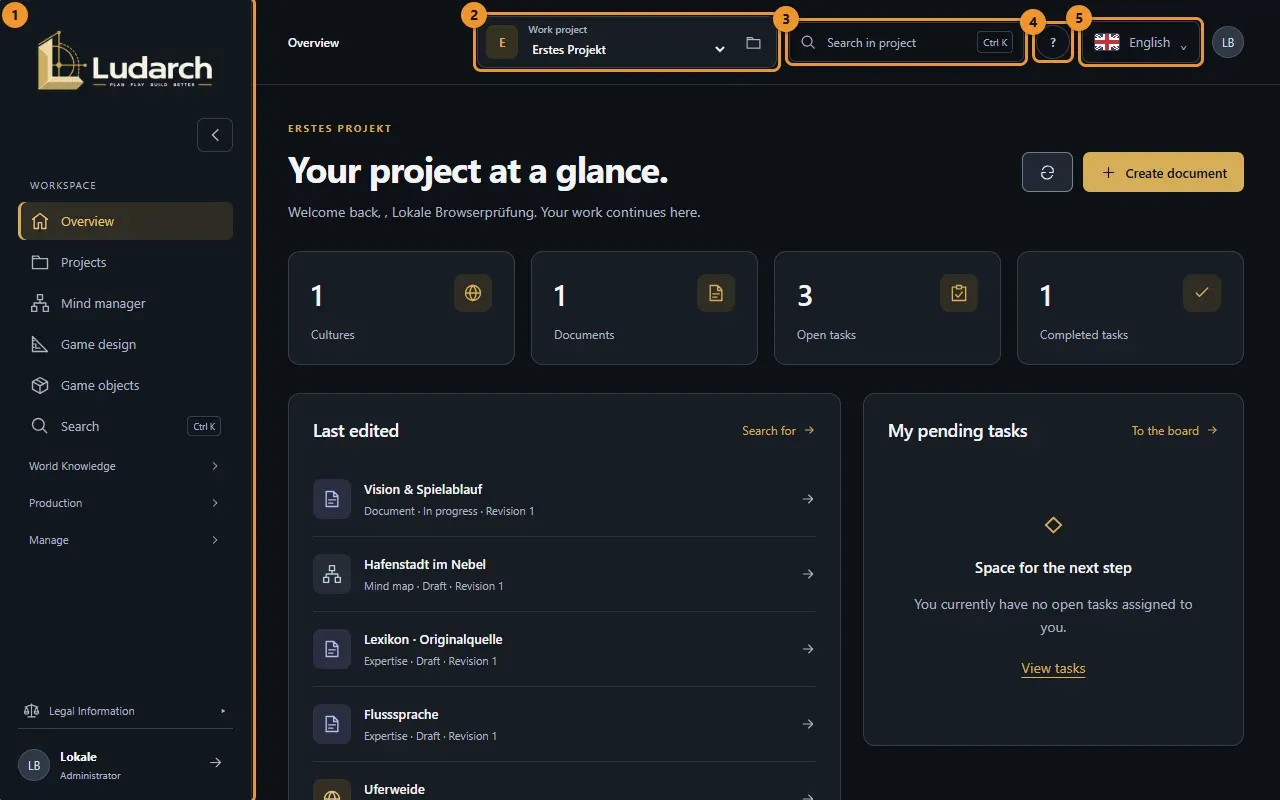
- Sidebar with all areas, grouped into Workspace, World Knowledge, Production and Manage.
- Work project — the project you are working in. Everything you see belongs to this project.
- Search in project — or press Ctrl+K (Cmd+K on a Mac) anywhere.
- ? — opens this handbook at the page for the current screen.
- Language — German, English, French, Spanish or Italian.
The sidebar
Section titled “The sidebar”- Workspace is always open. Click the name of World Knowledge, Production or Manage to fold the group in or out; Ludarch remembers your choice and opens a group automatically when you are on one of its pages.
- The arrow at the top folds the sidebar down to icons; hover over an icon to see its name.
- At the bottom you find your name — click it to open My user account — and the button Log out.
Why an area is missing
Section titled “Why an area is missing”The sidebar only shows what you can use:
- Project areas: each project chooses its areas under Sections in the navigation (see Projects). A hidden area keeps its content and stays reachable through Game design → All project areas.
- Plan: Team appears only in the Team plan, Storage with Ludarch storage (Advanced or Team), My AI agents from Advanced.
- Shared library appears only when the project has a parent project or sub-projects.
Switch projects
Section titled “Switch projects”Choose another project under Work project in the top bar. The folder icon next to it opens Manage projects. If you have unsaved changes, Ludarch asks first whether to continue editing or discard them. After switching, an open detail page returns to its list.
Language
Section titled “Language”Choose your language at the top right. Ludarch reloads the page in that language and remembers it.