
Managing the team
Available in:Team
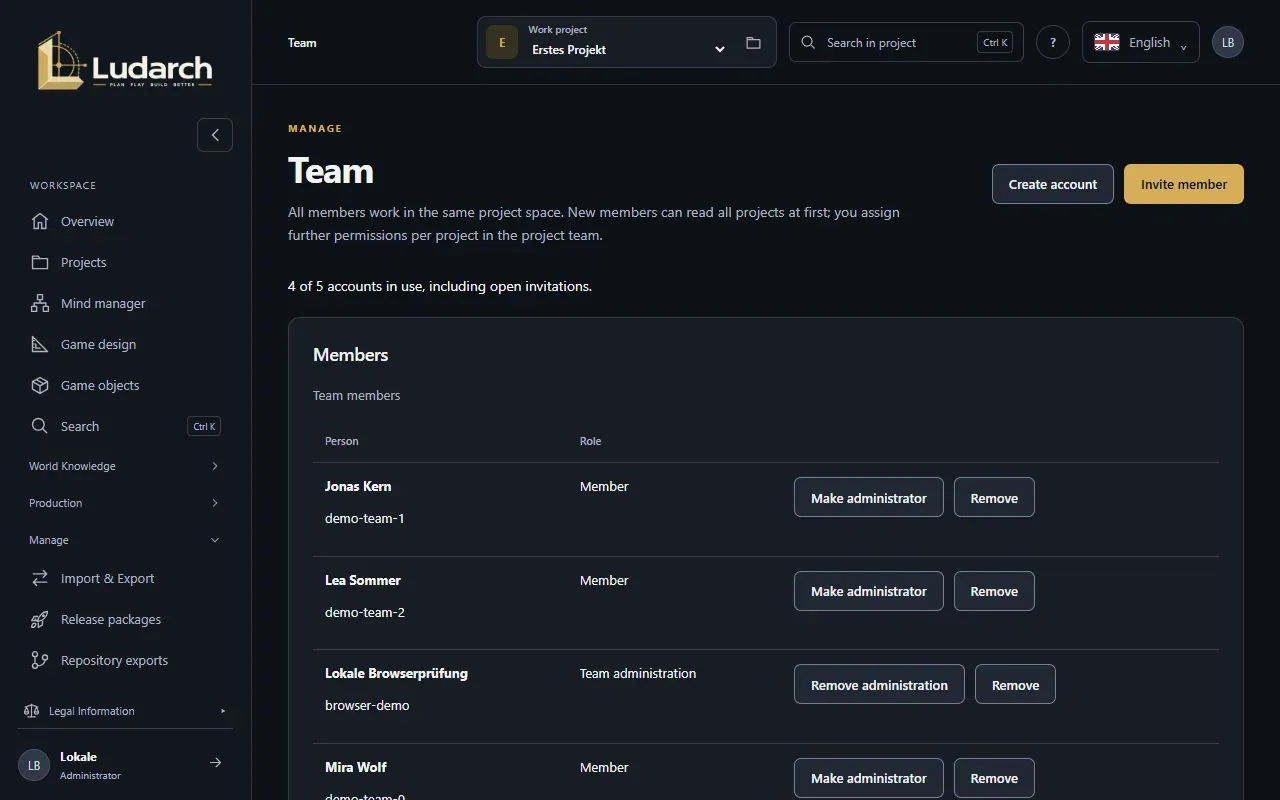
In the Team plan, a whole studio works in the same project space. Under Manage → Team you see all members; team administrators invite new members here, create accounts and hand out team administration. The page only exists in the Team plan.
Accounts in the Team plan
Section titled “Accounts in the Team plan”The Team plan includes five accounts. The line above the list shows how many are in use, for example 3 of 5 accounts in use, including open invitations. Open invitations count too. You book more accounts under Plans and billing.
Invite a member by email
Section titled “Invite a member by email”- Click Invite member.
- Enter the Email address and choose the Role:
- Member — can read all projects at first; you grant further rights per project.
- Team administration — all rights in all projects and in team management.
- Click Send invitation. The invitation appears under Open invitations.
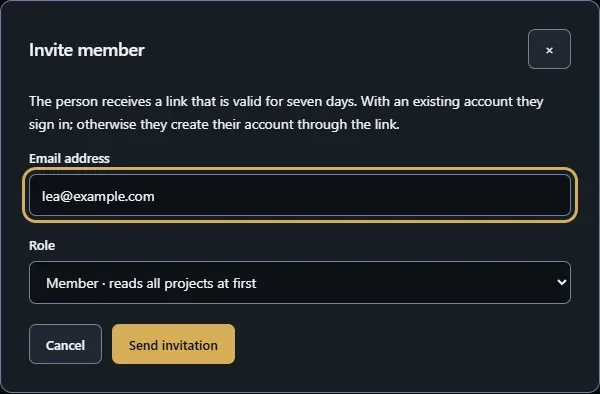
The person receives a link that is valid for seven days. If they already have a Ludarch account, they sign in and click Join team. Otherwise they create an account with their first name, last name and password and click Create account and join.
Withdraw takes back an open invitation, and the account becomes free again.
Create an account directly
Section titled “Create an account directly”If email invitations do not suit you, create the account yourself:
- Click Create account.
- Enter the First name, Last name, Email address, an Initial password (at least 12 characters) and the Role.
- Click Create account and pass on the initial password in person.
The person signs in with their email address and the initial password and sets their own password at the first sign-in. The account belongs only to this team and does not get a studio of its own.
Choose team administrators
Section titled “Choose team administrators”A team can have several administrators. In a member’s row, click Make administrator or Remove administration; the change takes effect at once. At least one active team administrator must remain.
Remove a member
Section titled “Remove a member”- In the member’s row, click Remove.
- Confirm in the dialog with Remove.
The person immediately loses access to all of the studio’s projects. What they created is kept; their account itself is not deleted.
Only team administrators see the buttons and the open invitations. Everyone else sees the member list read-only.