
AI task suggestions
Available in:BasicAdvancedTeam
Under Production → AI tasks you let an AI work out concrete next steps from a culture dossier. You decide which suggestions become tasks. The entry appears when the project has ticked the area AI Tasks & Media under Sections in the navigation (see Projects).
You need an AI connection for this: your own key under Personal AI connections or the project’s AI access.
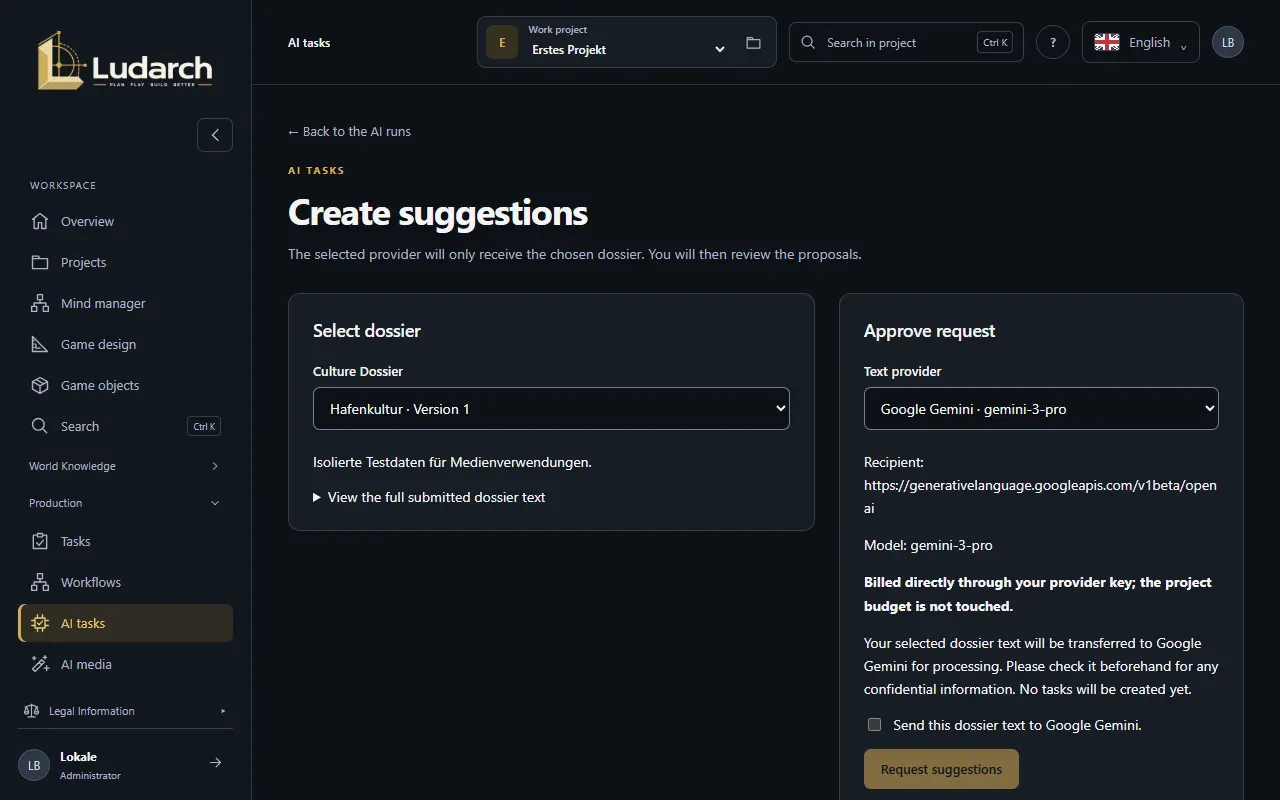
Create suggestions
Section titled “Create suggestions”- Click Create suggestions.
- Under Select dossier, choose the Culture Dossier. View the full submitted dossier text shows you exactly what is sent to the AI.
- Under Approve request, choose the Text provider if there is more than one.
- Tick the box to confirm that this dossier text may be sent to the provider.
- Click Request suggestions.
The page updates by itself while the AI is working. You can close it and open the run again later from the overview.
Adopt suggestions as tasks
Section titled “Adopt suggestions as tasks”- Open the run. Under Suggestions you see each suggestion with its description, reasoning, priority and steps.
- Tick the suggestions you want.
- Click Adopt suggestions as tasks.
The tasks are created with the status Open, without a person responsible or a due date, and with the dossier as their reference. To the task board takes you to them.
Who pays?
Section titled “Who pays?”- With your own key or a project key, the AI provider bills you directly. The internal project budget is not used.
- If your operator provides a provider with a cost cap, each run reserves a maximum amount from the AI project budget. If the budget is not enough, the run cannot start.
Manage the AI project budget (project administrators)
Section titled “Manage the AI project budget (project administrators)”Click Manage budget, tick Allow new AI calls for this project, enter the Total limit in USD and a Reason for change, and click Save budget & go back. The budget is an internal usage limit, not a payment. It applies in total and does not reset every month.
Control a run
Section titled “Control a run”In the run, Run and usage shows the model, tokens and usage. Pause, Continue and Abort run control it. If the dossier has changed in the meantime, start a new run.